Setup the gift card form on your Shopify store
The gift card form is a block from our Gift Cards app that you add to your Shopify theme. It shows on your gift card product page, where customers choose the gift amount and card design, enter their own details and the recipient's, add a personal message and choose when the gift card is delivered. They then add the gift card to their cart like any other product.
The gift card form replaces the "Send as a gift" button, which is now deprecated.
Before you start
- Our Gift Cards app is connected to your Shopify store and you've created your gift card program.
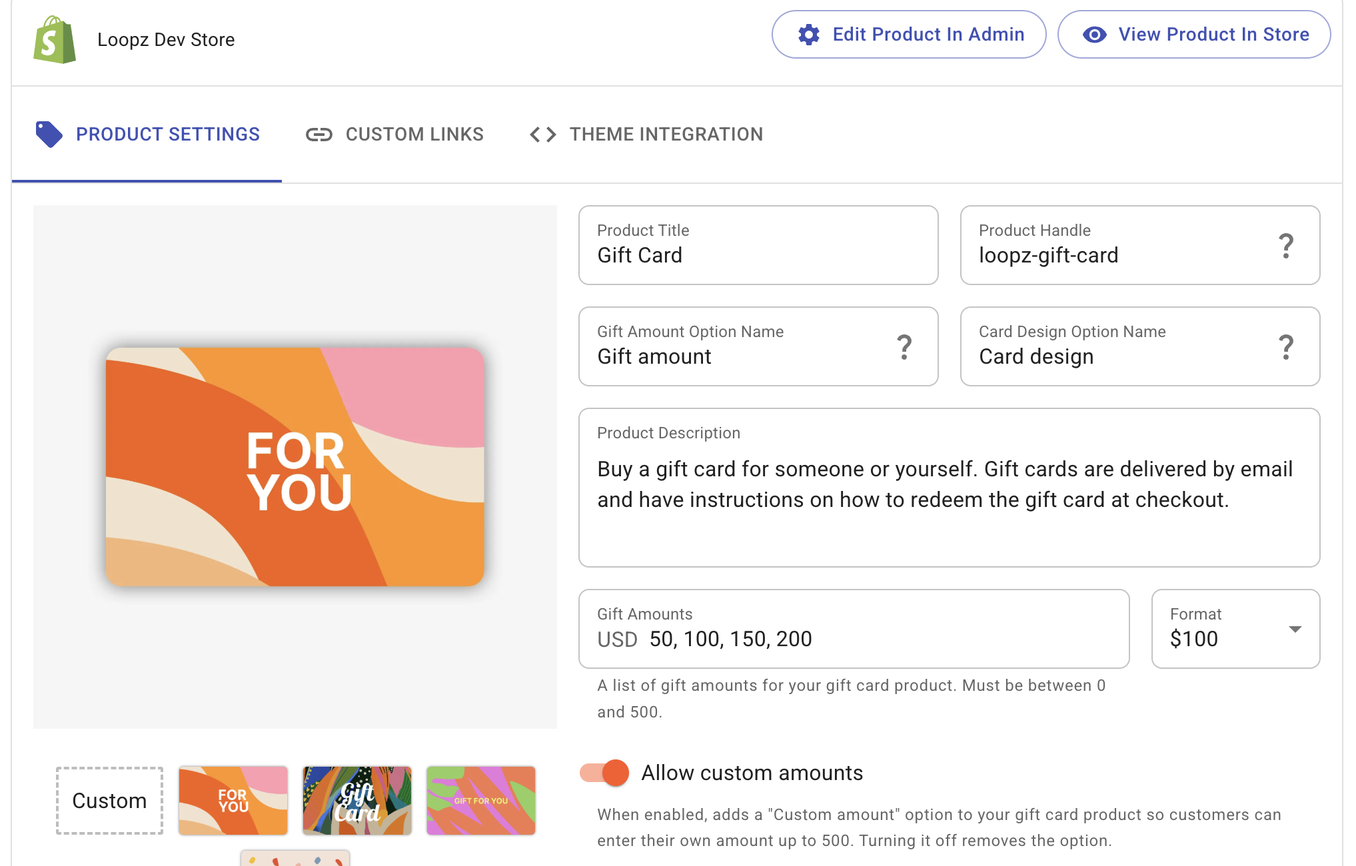
- Loopz has created the gift card product on your online store. You manage it on the Gift Card Product screen of your Loopz dashboard.
- Your theme supports app blocks. Most current Shopify themes do, including Dawn and Horizon.
1. Add the gift card form block
The quickest way is from your Loopz dashboard. On the Home screen, open the Setup gift card form on your Shopify store task and click Add Gift Card Form Block. Your Shopify theme editor opens on the gift card product's template with the form added.
You can also add the form yourself in the theme editor:
- In your Shopify admin, go to Online Store → Themes and click Customize.
- Open the template your gift card product uses, usually Default product, and preview the gift card product.
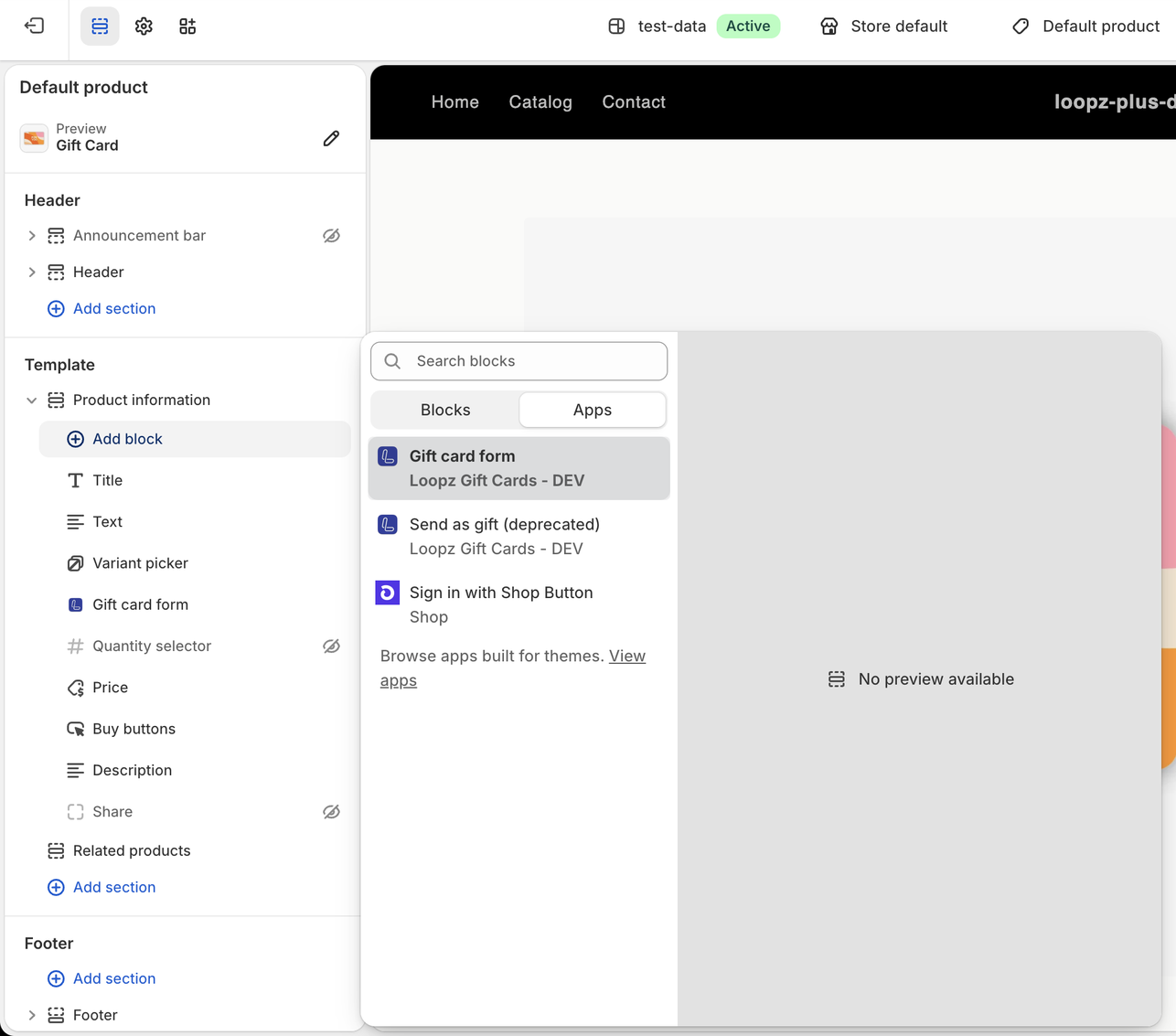
- In the Product information section, click Add block, open the Apps tab and choose Gift card form.
2. Position the form and save
Drag the Gift card form block to where you want it in the product information section, for example below the product title. You can leave your theme's Variant picker and Buy buttons blocks in the template. On the gift card product page, the form always hides the variant picker, since its own gift amount and card design pickers replace it, and hides the buy buttons when Show 'Add to cart' button is on.
Click Save in the top right corner of the theme editor. Loopz picks up the form shortly after you save and marks the setup task on your dashboard as complete.
The form only shows on your gift card product's page. If the gift card product uses its own template, add the form to that template.
3. Configure the form
Select the Gift card form block to see its settings.
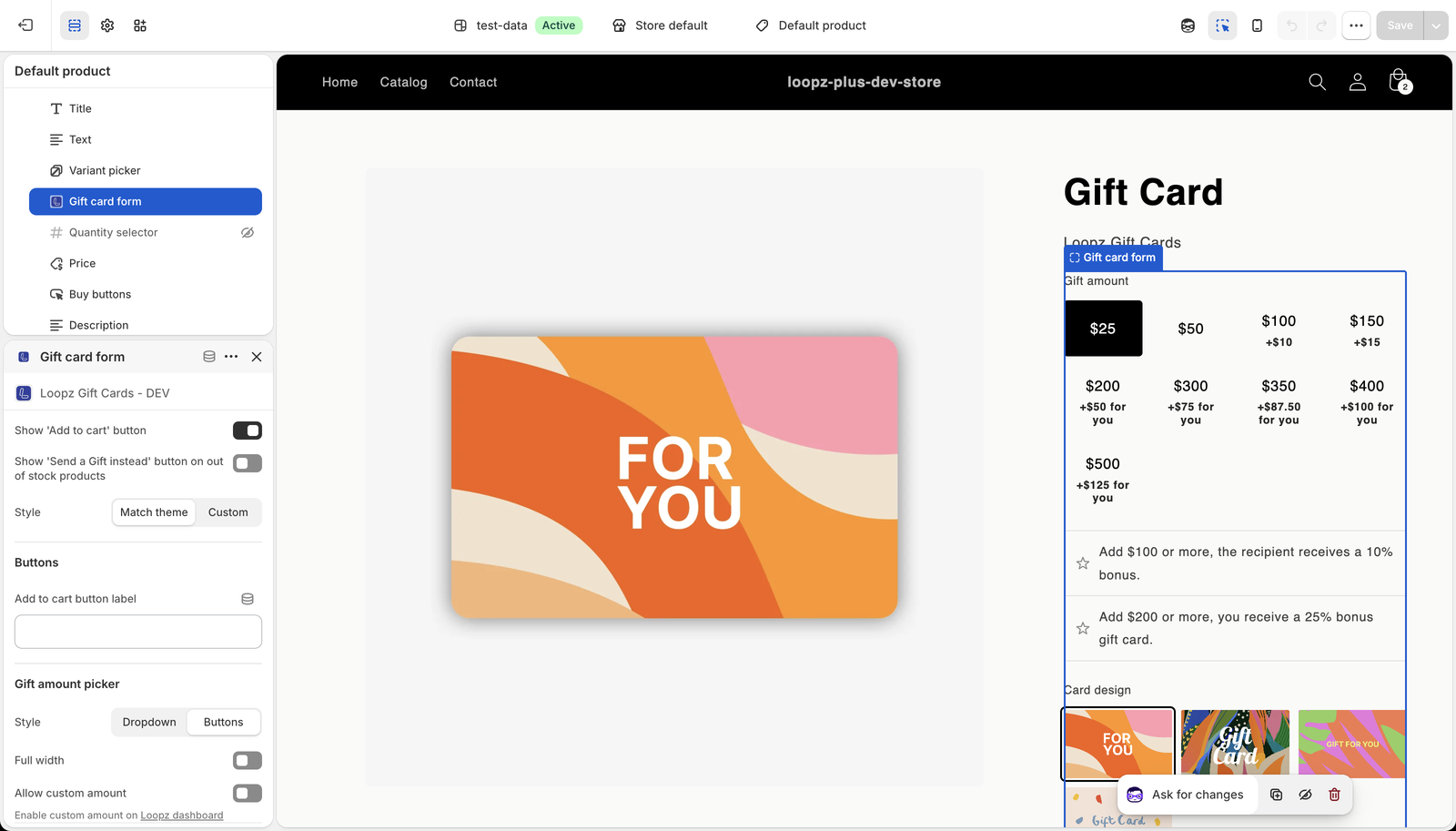
- Show 'Add to cart' button: shows the form's own Add to cart button in place of your theme's buy buttons. Turn it off to keep your theme's buy buttons, which then add the gift card with the details from the form. Your theme's variant picker is hidden either way.
- Show 'Send a Gift instead' button on out of stock products: shows a button to your gift card product on sold out products, see Suggest a gift card on sold out products below.
- Style: Match theme uses your theme's fonts, colors and button styles. Custom adds settings for the colors, fonts, text sizes, borders and corner radius of the form's text and headings, text fields, buttons and incentives. Any setting you leave empty keeps your theme's.
- Add to cart button label: replaces the "Add to cart" label in every language. Leave it blank to show the label translated into each customer's language.
- Gift amount picker: show the gift amounts as Buttons or a Dropdown, and make the picker Full width. Allow custom amount adds a custom amount option, see Let customers choose their own amount below.
Click Save after changing the settings.
What customers see
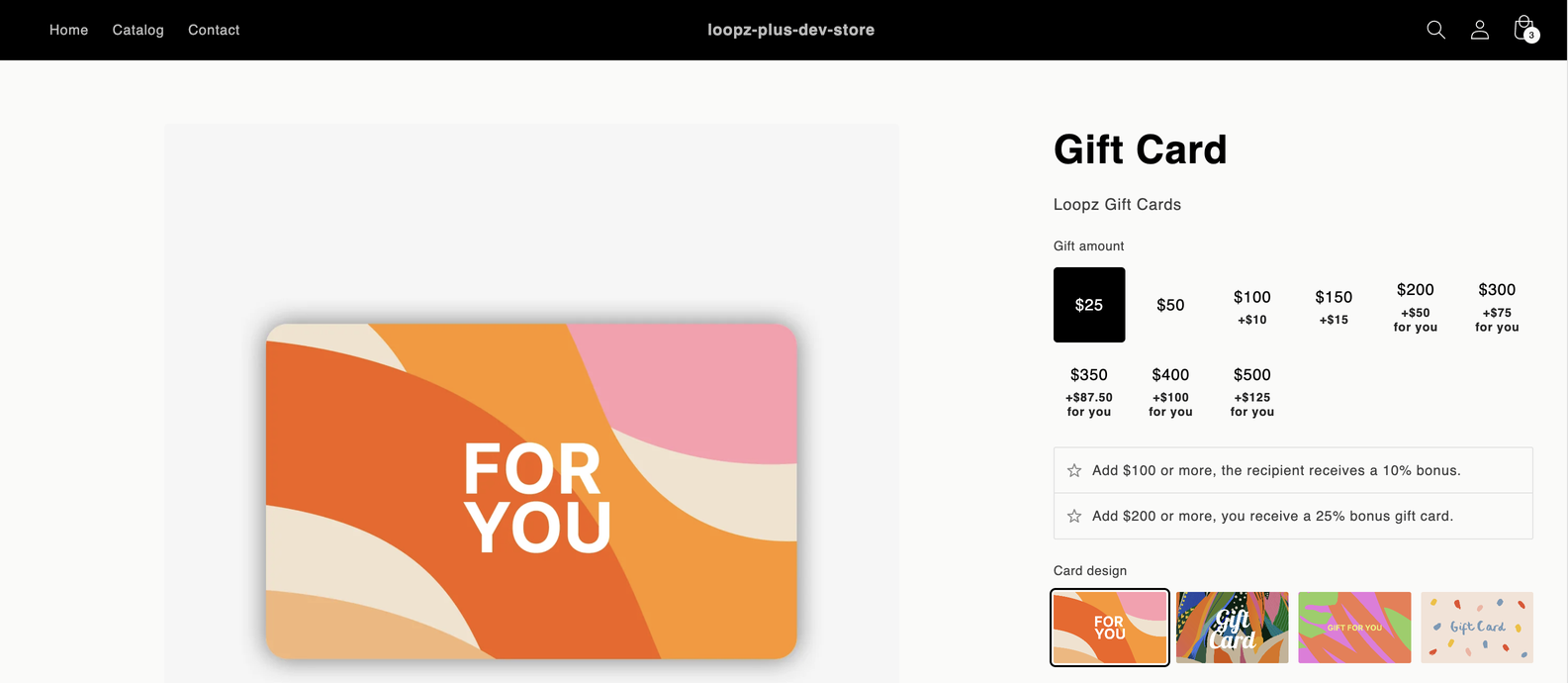
On your gift card product page, customers pick a gift amount and a card design. The incentives of your gift card program show under the gift amounts, so customers see the bonus each amount earns. The picked card design replaces the product image.
Below, customers enter their own name and email and the recipient's, and can add a personal message of up to 500 characters. Customers buying a gift card for themselves can tick Send the gift card to myself instead. Under Delivery, Now sends the gift card right away and Later lets the customer choose the date and time it's sent.
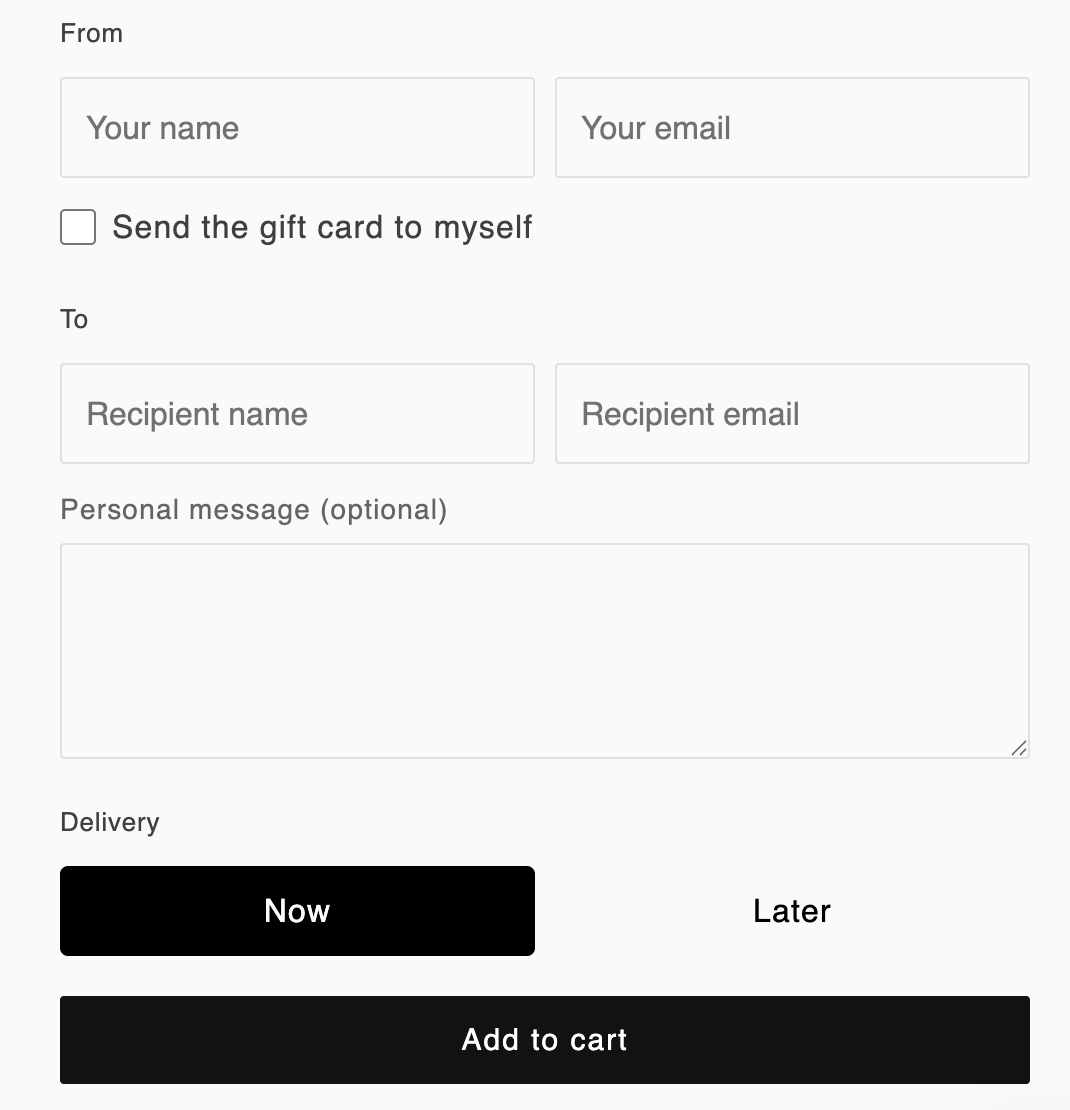
Clicking Add to cart adds the gift card to the cart with all its details, which are shown in the cart and at checkout. Customers can add several gift cards to the same order, each with its own recipient. Loopz emails each gift card to its recipient when its order is fulfilled, or on the chosen delivery date. Turn on Auto fulfill gift card orders on the Gift Card Product screen to fulfill gift card orders automatically.
The form's text is translated into 31 languages and follows the language of your storefront.
Let customers choose their own amount
Customers can enter their own gift amount, between your program's minimum and maximum balance, as well as pick one of your gift amounts.
- On your Loopz dashboard, open the Gift Card Product screen, turn on Allow custom amounts and click Update.
- In the theme editor, select the Gift card form block, turn on Allow custom amount under Gift amount picker and click Save.
If the custom amount option doesn't show on your store after both steps, contact Loopz support.
Suggest a gift card on sold out products
When a product is sold out, the gift card form can suggest a gift card instead. Add the Gift card form block to the template your other products use (often the same Default product template) and turn on Show 'Send a Gift instead' button on out of stock products.
On the page of any product whose variants are all sold out, the block shows a Send a Gift instead button that takes the customer to your gift card product page. Change its text with Out of stock button label under Buttons, or leave it blank to show it translated into each customer's language.
Replace the "Send as a gift" button
If your store uses the "Send as a gift" button, add the gift card form to the gift card product's template, then remove the Send as gift (deprecated) block and click Save. The button keeps working until you remove it, and the theme editor shows a notice on it as a reminder.
FAQ
- Why doesn't the form show on my product page? The form only shows on your gift card product's page. Check that the gift card product uses the template you added the form to, and that you saved the theme.
- Where do I change the gift amounts and card designs? On your Loopz dashboard. Gift amounts are set on the Gift Card Product screen and card designs on the Card Designs screen. The form shows your changes once they're saved.
- Does the "Add buy gift card button to out of stock products" setting on the dashboard affect the form? No. That setting only applies to the deprecated "Send as a gift" button. The form uses its own Show 'Send a Gift instead' button on out of stock products setting.
- Can I use the form with my theme's own buy buttons? Yes. Turn off Show 'Add to cart' button. Your theme's buy buttons stay on the page and add the gift card with the details from the form. The form's gift amount and card design pickers replace your theme's variant picker.
Ready to sell more gift cards?
One gift card program across your point of sale and online store, always in sync.