Refund an order as store credit on Shopify POS
With the Loopz Gift Cards POS extension you can refund an order as store credit right from Shopify POS. Loopz issues a store credit gift card to the customer for the refunded amount, sends them a notification, and records the refund on the Shopify order. Items the customer brings back can be recorded as a Shopify return at the same time. The original payment method is never charged back.
Before you start
- The Loopz Gift Cards app must be installed on your store, with a gift card program set up and an active subscription.
- The Refund as store credit gift card action must be turned on for your POS in the Shopify admin. See the next section.
- Recording items as returns needs Shopify's returns permission. Stores connected to Loopz before the return option was added may not have granted it yet, in which case the Mark as return switch doesn't appear. Contact Loopz support and we'll help you update the app's permissions.
Turn on the refund action in Shopify POS
The action is a POS app extension. Shopify lists it in the POS editor, where you choose which app actions your POS shows. You only need to do this once per store.
Open the POS editor
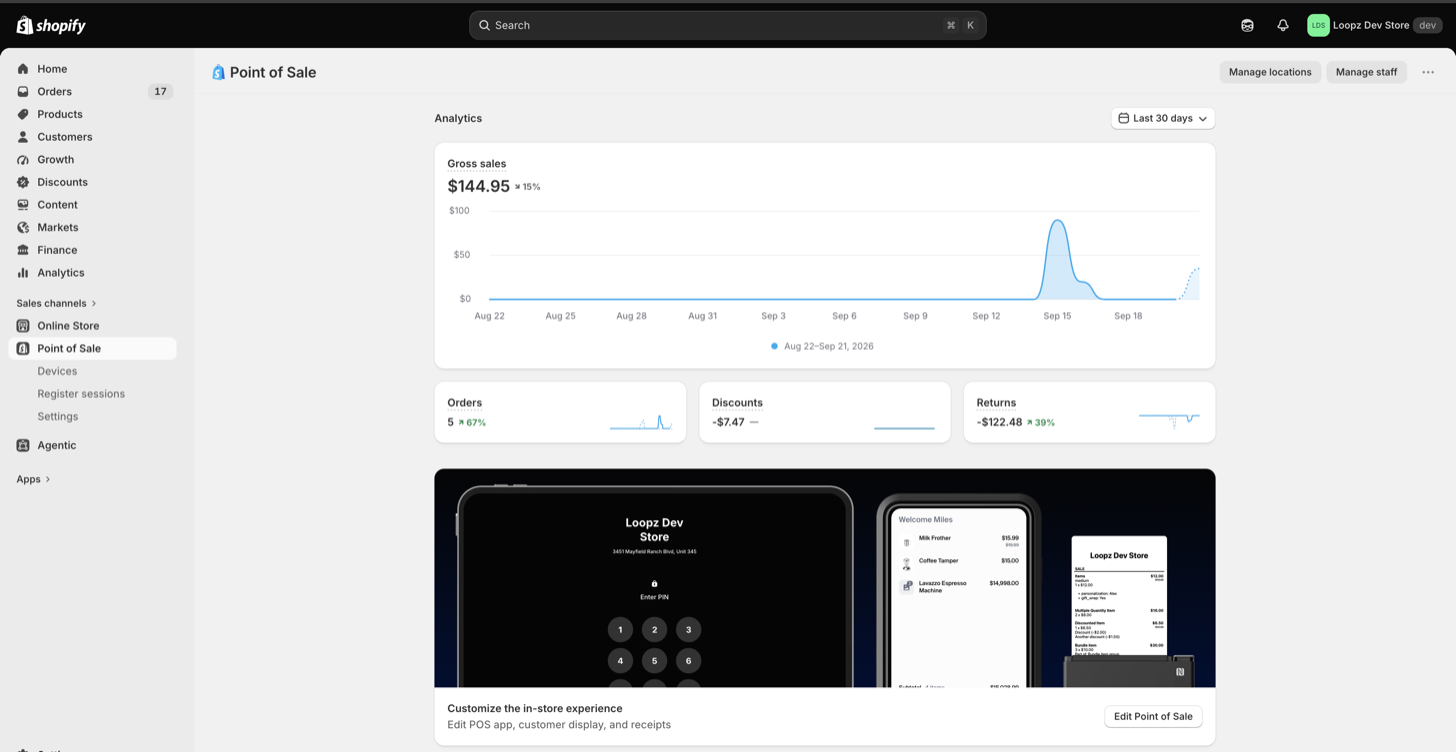
In the Shopify admin, open the Point of Sale sales channel and click Edit Point of Sale in the Customize the in-store experience card.
Select the Loopz action
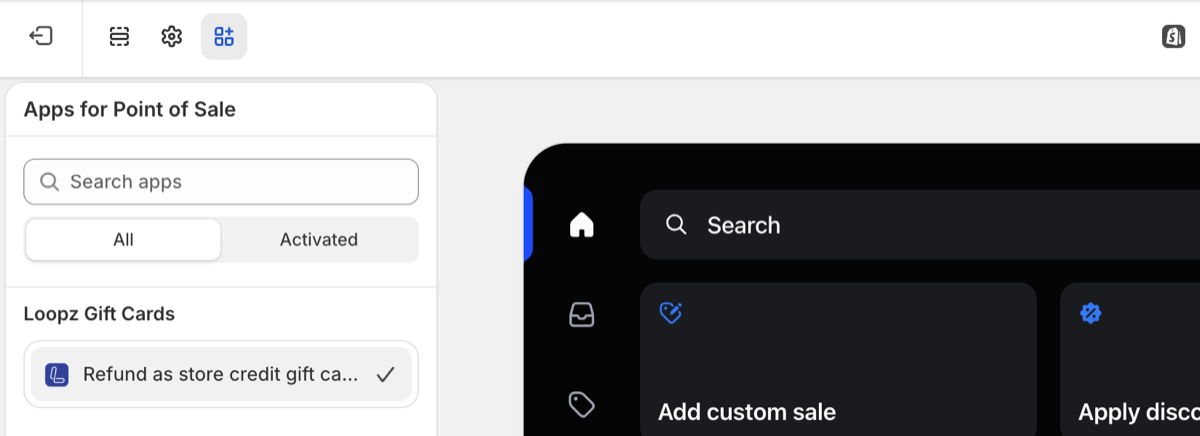
Click the Apps icon, the last icon in the toolbar at the top left, to open Apps for Point of Sale. Under Loopz Gift Cards, click Refund as store credit gift card.
Activate it on order details
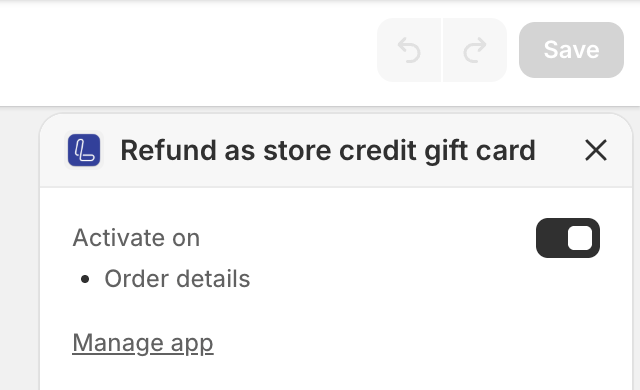
In the panel on the right, turn on Activate on for Order details and click Save. The action shows up in the order actions on your POS devices the next time they sync. If you don't see it, close and reopen the order, or restart the POS app.
1. Open the order and choose the refund action
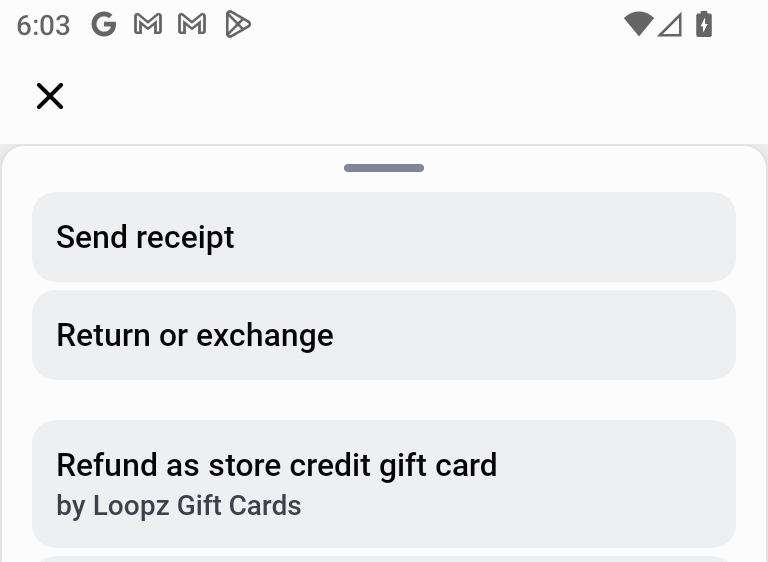
In Shopify POS, open Orders and tap the order you want to refund. The order's actions open at the bottom of the screen. Tap Refund as store credit gift card (by Loopz Gift Cards).
2. Choose the items to refund
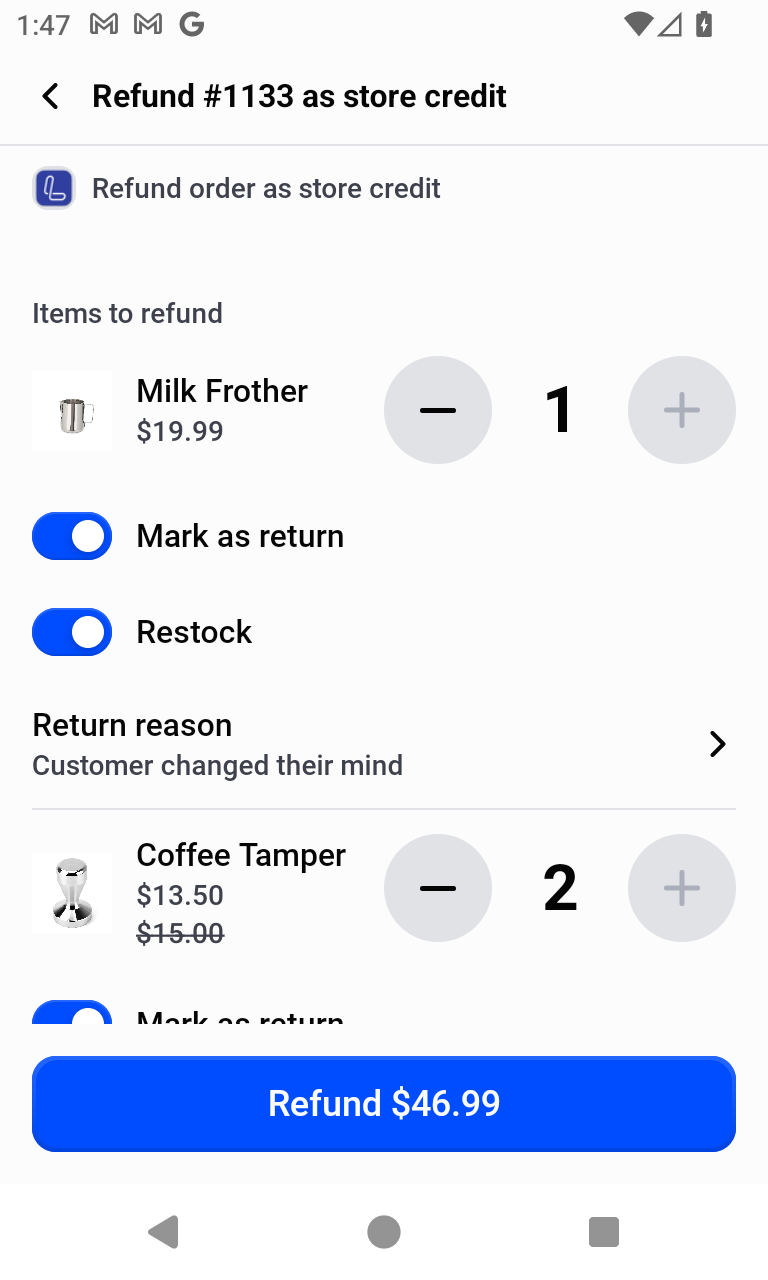
The refund screen lists the order's items, pre-selected at their full refundable quantity. Use the steppers to change the quantity of each item to refund, or set an item to 0 to leave it out. Items that were already refunded show a Refunded badge.
An item that had a discount of its own shows its discounted price, with the original price struck through below it. Order-level discounts, such as a discount code for the whole order, are listed under Discounts below the subtotal.
The screenshots in this step are from order #1133, which has been fulfilled. Orders that haven't been fulfilled yet and orders whose payment is only authorized work a little differently, as described near the end of this guide.
Below each item, the Mark as return switch decides how Loopz records the refunded units on the Shopify order:
- On: the units are recorded as a Shopify return that is refunded to store credit. Shopify shows the items as returned, and they count in your returns reports.
- Off: the units are recorded as a regular refund, without a return.
The switch is on by default for physical products. It's only offered for units that have been fulfilled, so on an order that hasn't shipped yet the items are refunded without a return.
When an item is marked as return, two more options appear below it:
- Restock: puts the returned units back into inventory at the location of this POS. It's on by default. Turn it off for items that can't be sold again, such as damaged ones, and Shopify records them as not restocked.
- Return reason: why the customer returned the item. Shopify shows the reason on the return and in your returns reports. It's Other until you pick one, with your note as the reason's details.
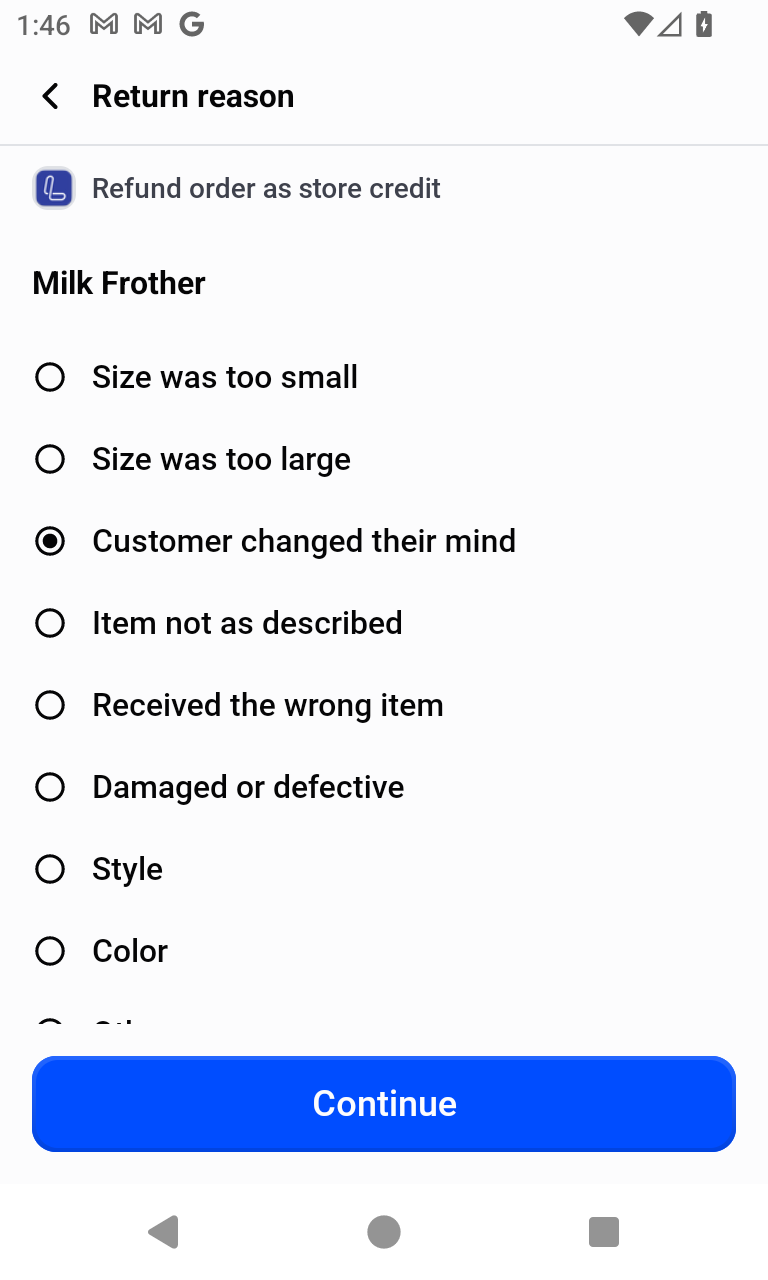
Tap Return reason to pick why the customer returned the item, such as Customer changed their mind or Damaged or defective, and tap Continue.
If the order has taxes or shipping, turn on Include taxes or Include shipping to add them to the refund. They're off by default on a fulfilled order and on by default on an order that hasn't been fulfilled yet. The Total refund updates as you go, and the refund button always shows the exact amount that will be issued as store credit.
Shipping is refunded at what the customer paid for it after discounts, less any shipping already refunded. With both switches on, the tax charged on shipping is refunded too.
If your store's prices include tax, you won't see an Include taxes switch. The tax is already part of what the customer paid for the items and shipping, so it's always refunded with them. A Taxes (included) line shows how much of the refund is tax.
3. Set the store credit recipient
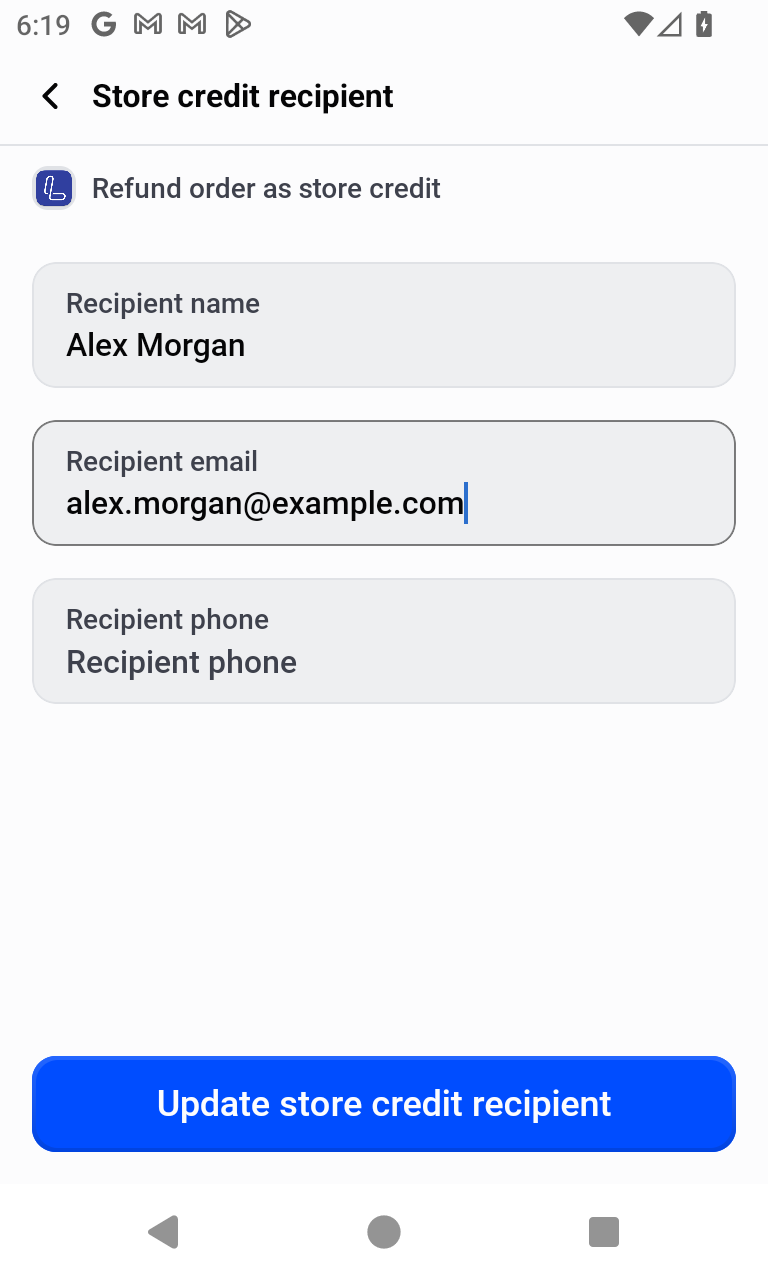
The store credit is delivered by email or text message, so the refund needs a recipient. If the order has a customer, their details are pre-filled. To add or change the recipient, tap Add gift recipient details, enter a name and an email address or phone number, and tap Update store credit recipient. Either an email or a phone number is required.
4. Review the note and card design
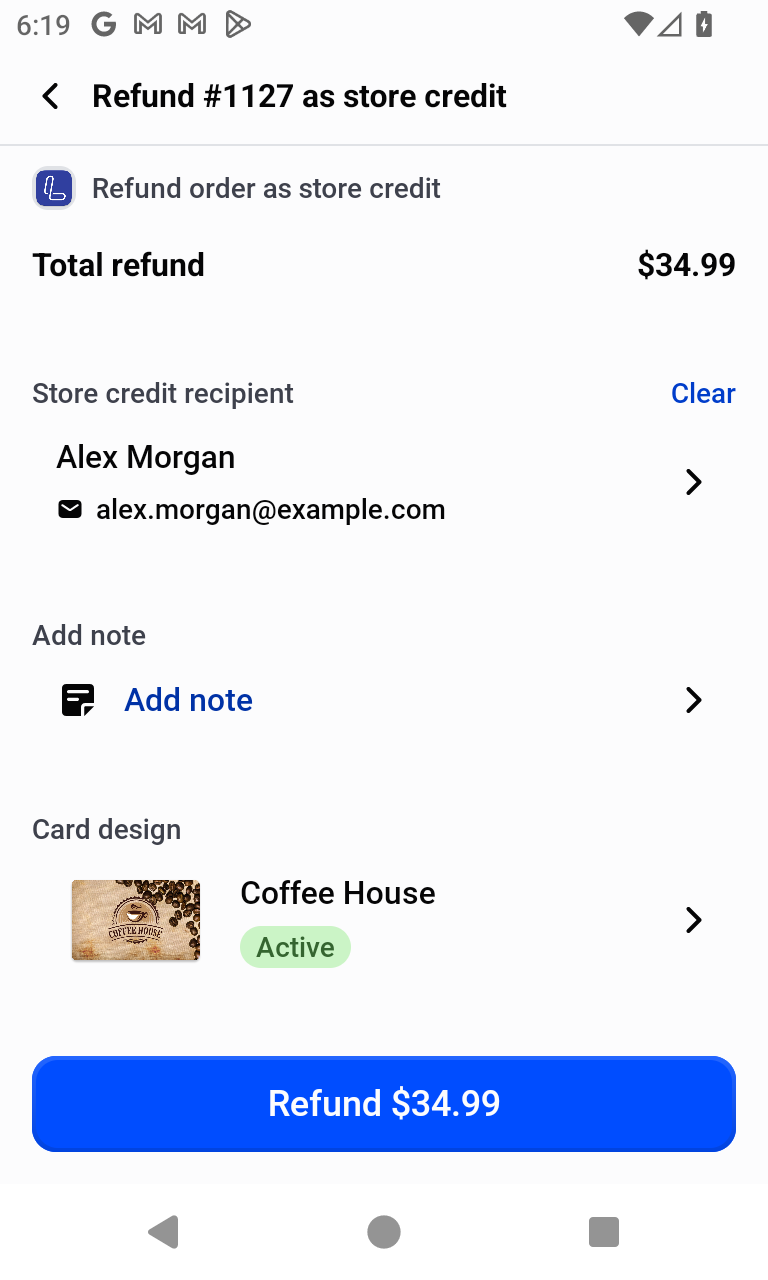
Optionally tap Add note to attach an internal note to the store credit. It isn't shared with the customer, but it's saved on the refund in Shopify. The Card design picker shows the gift card design the store credit will be issued on; your program's store credit design is pre-selected, and you can tap it to pick a different one.
When everything looks right, tap Refund.
5. Order refund as store credit complete
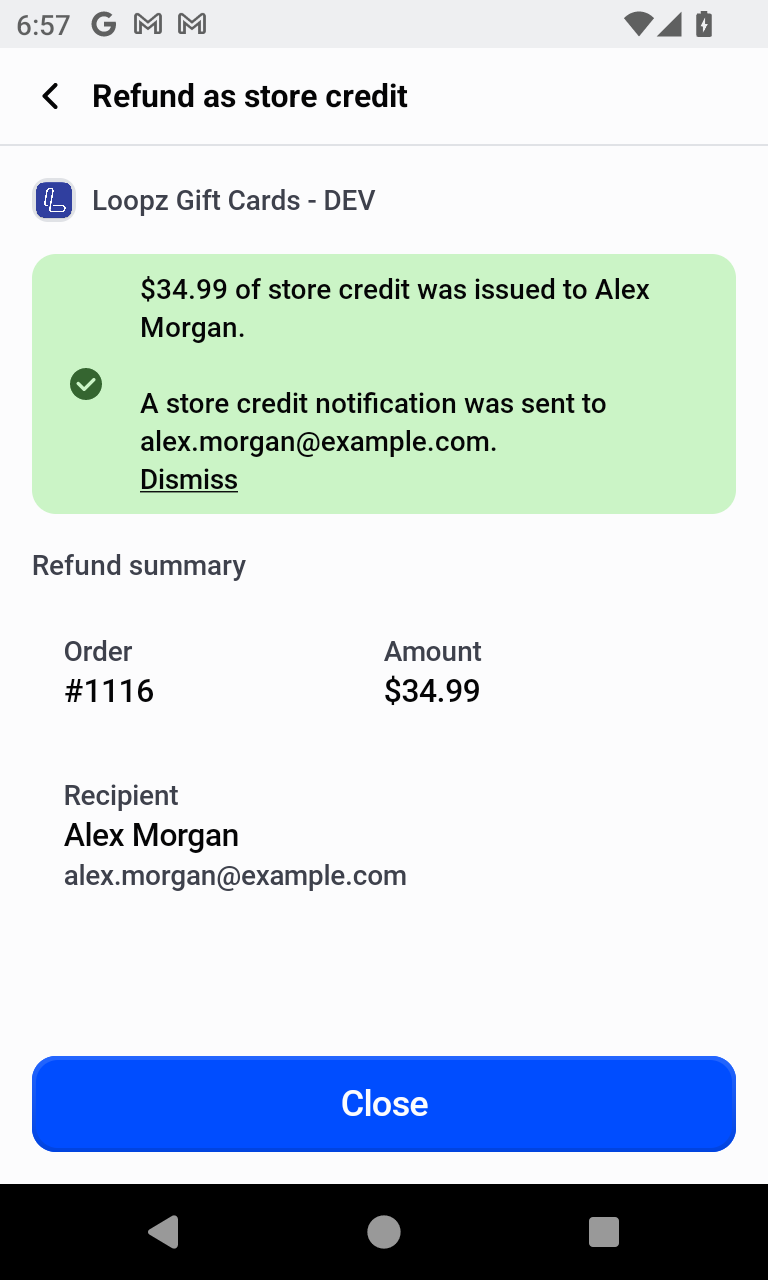
Loopz issues a store credit gift card for the refund amount, sends the notification to the recipient, and records the refund on the Shopify order. Items marked as return show as returned on the order. The confirmation screen summarizes the order, amount, and recipient.
How the refund works for each order status
What the refund screen offers depends on whether the order has been fulfilled and whether its payment has been captured. The three examples below are orders from the same store, whose prices include tax.
Fulfilled orders
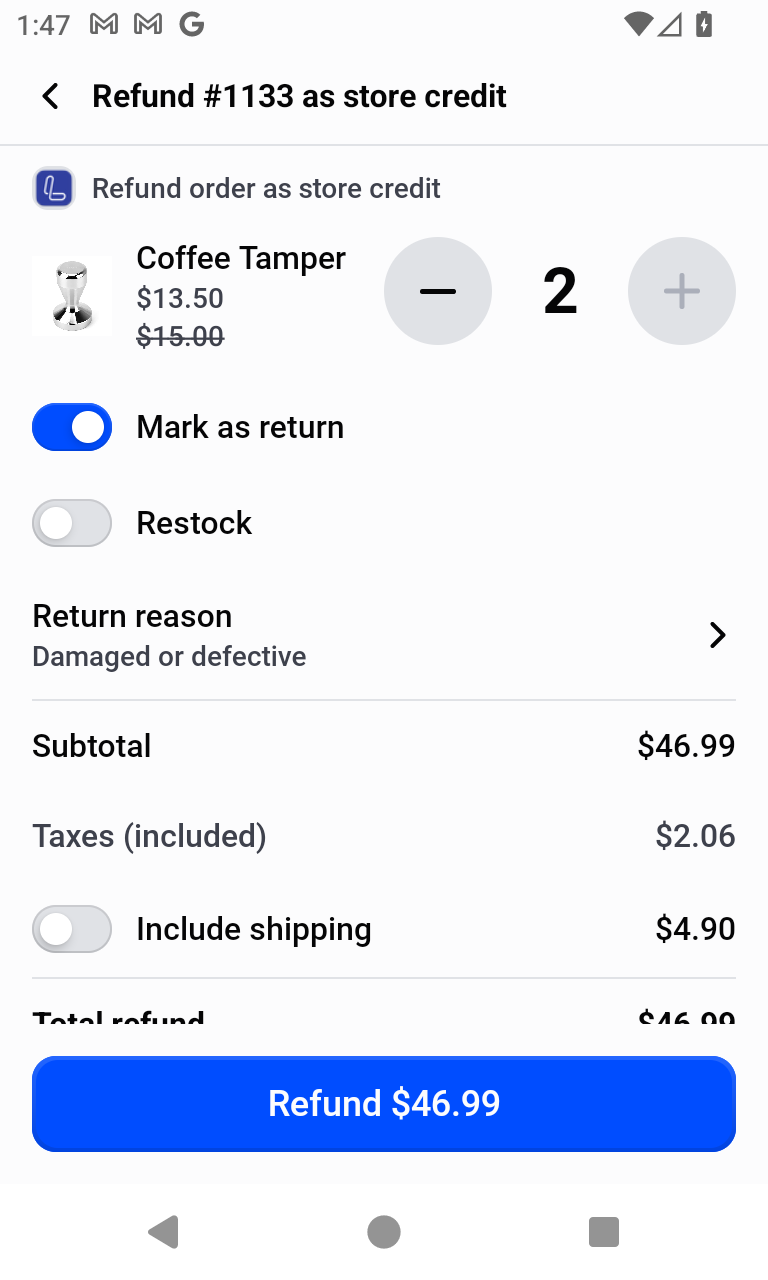
Order #1133 has been fulfilled, so the customer has the items. Each item can be marked as return, restocked, and given a return reason, as in step 2. Include taxes and Include shipping start off, since the customer received what they paid for. Turn them on to refund taxes or shipping too.
In this example the Coffee Tamper came back damaged, so it's marked as return with the reason Damaged or defective and Restock turned off. The Milk Frother is restocked.
Orders that haven't been fulfilled yet
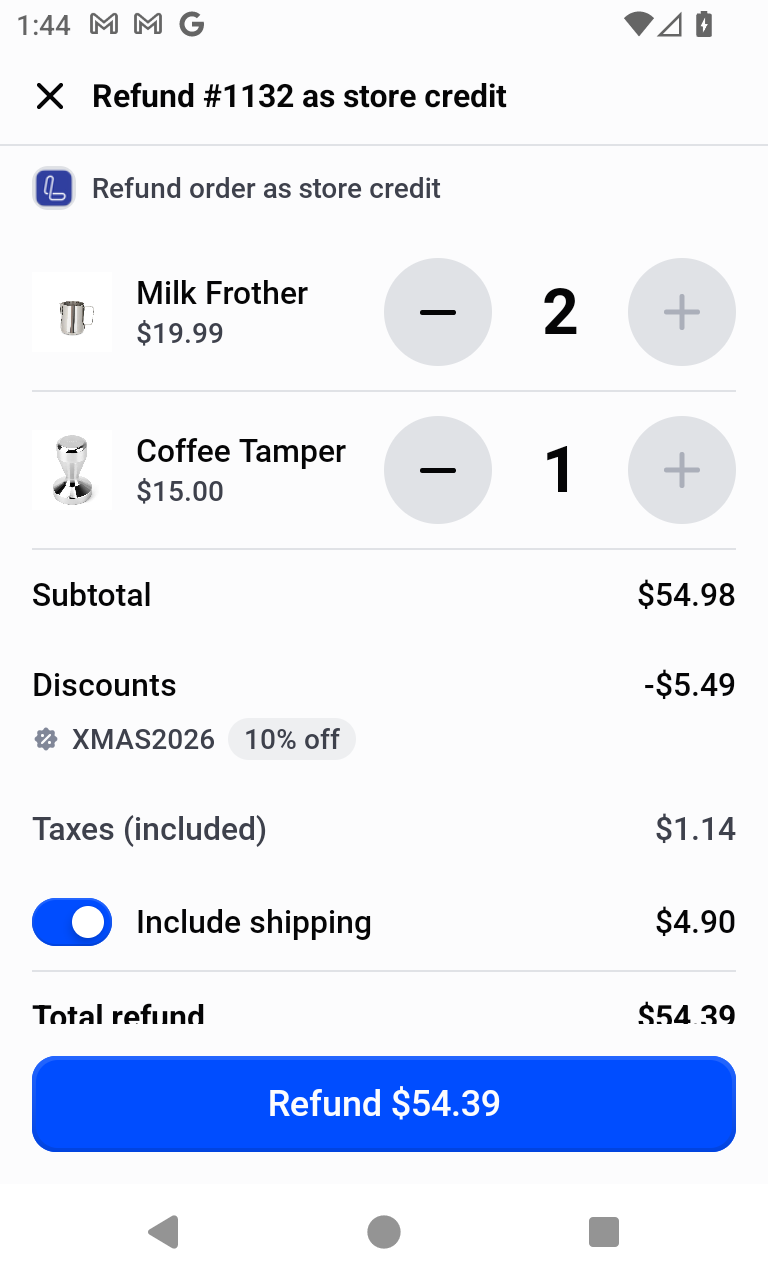
Order #1132 hasn't been fulfilled, so nothing has reached the customer. Its items can only be refunded, not marked as return, and Include taxes and Include shipping start on, so the refund covers everything the customer paid. This store's prices include tax, so only the shipping switch shows. The order's XMAS2026 discount code is listed under Discounts, and the refund of $54.39 matches the order total.
Loopz doesn't restock items that are refunded without a return, so adjust their inventory in Shopify if needed.
Orders whose payment is only authorized
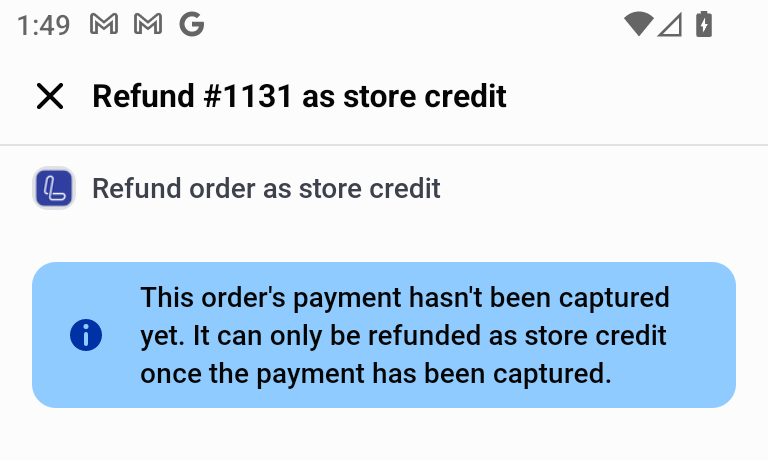
Order #1131's payment has been authorized but not captured yet, which happens when your payment provider captures payments manually. There's nothing to refund until the payment is captured, so the refund screen only shows a message. Capture the payment on the order in the Shopify admin, then open Refund as store credit gift card again.
Reviewing a refund later
Reopening Refund as store credit gift card on a refunded order shows the refund summary and every previous refund. Tap a refund to see its amount, status, and date, how it was recorded in Shopify (as a return, a refund, or both when only some items were marked as return), and the issued gift card with its live balance.
Good to know
- The customer's original payment method is never charged back. The refund value lives on the store credit gift card, which can be spent in-store or online like any other gift card.
- Only items marked as return can be restocked. Items refunded without a return aren't restocked, so adjust their inventory in Shopify if needed.
- If Shopify can't restock the items, the refund still completes and the return stays open on the order, so you can restock the items from it in Shopify.
- Refunds over $2,000 are automatically split across multiple gift cards to respect Shopify's per-card limit.
Ready to sell more gift cards?
One gift card program across your point of sale and online store, always in sync.