Customize Apple Wallet and Google Wallet pass design
When customers add a Loopz gift card to Apple Wallet or Google Wallet, they see a digital pass branded for that card design. You can customize that pass from the Card Designs screen so it matches your business.
Each card design has its own wallet pass settings. Changing the wallet design for one card design does not change the others.
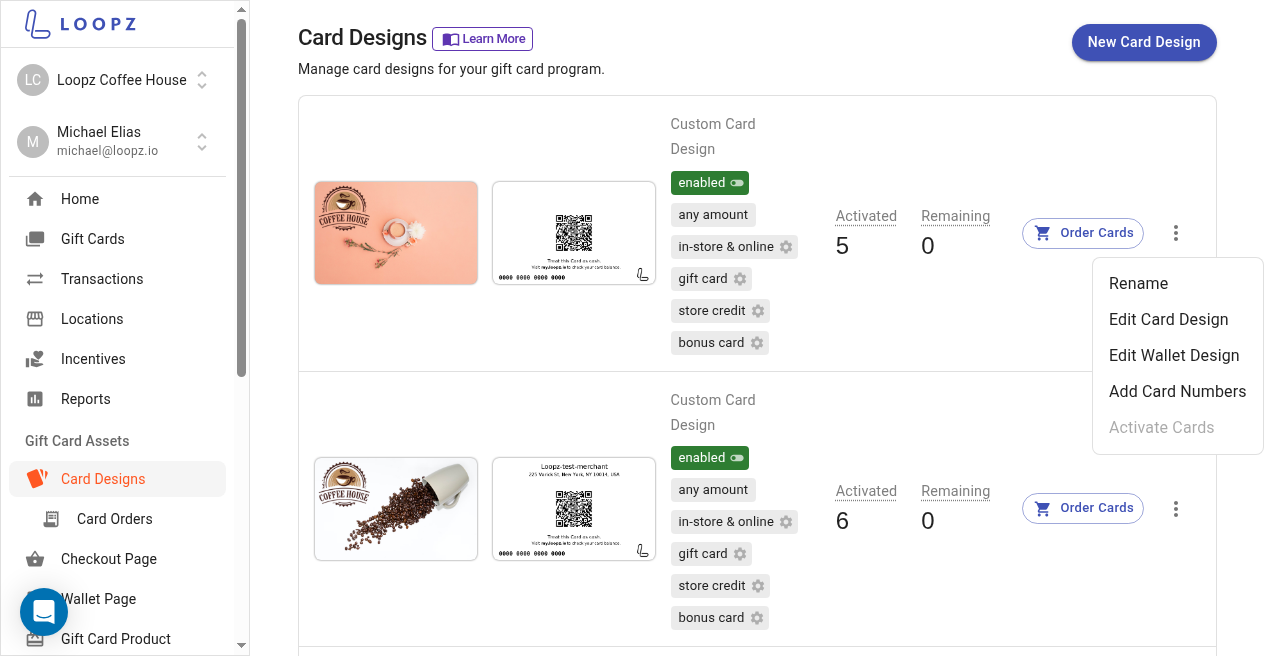
Open the wallet design editor
- In the dashboard sidebar, go to Gift Card Assets and open Card Designs.
- Find the card design you want to customize.
- Open the overflow menu (the three-dot icon) on that card design and choose Edit Wallet Design.
You can also open the Wallet tab on the card design to preview the current Apple Wallet or Google Wallet pass before you edit it.
Preview Apple Wallet and Google Wallet
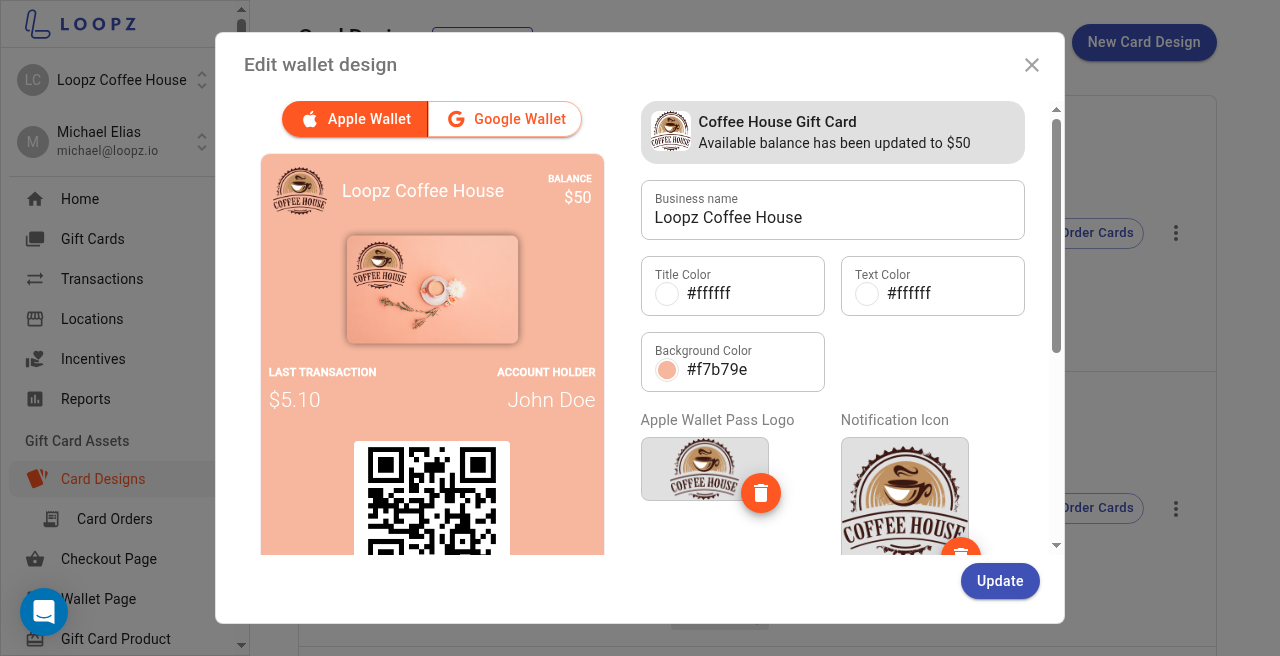
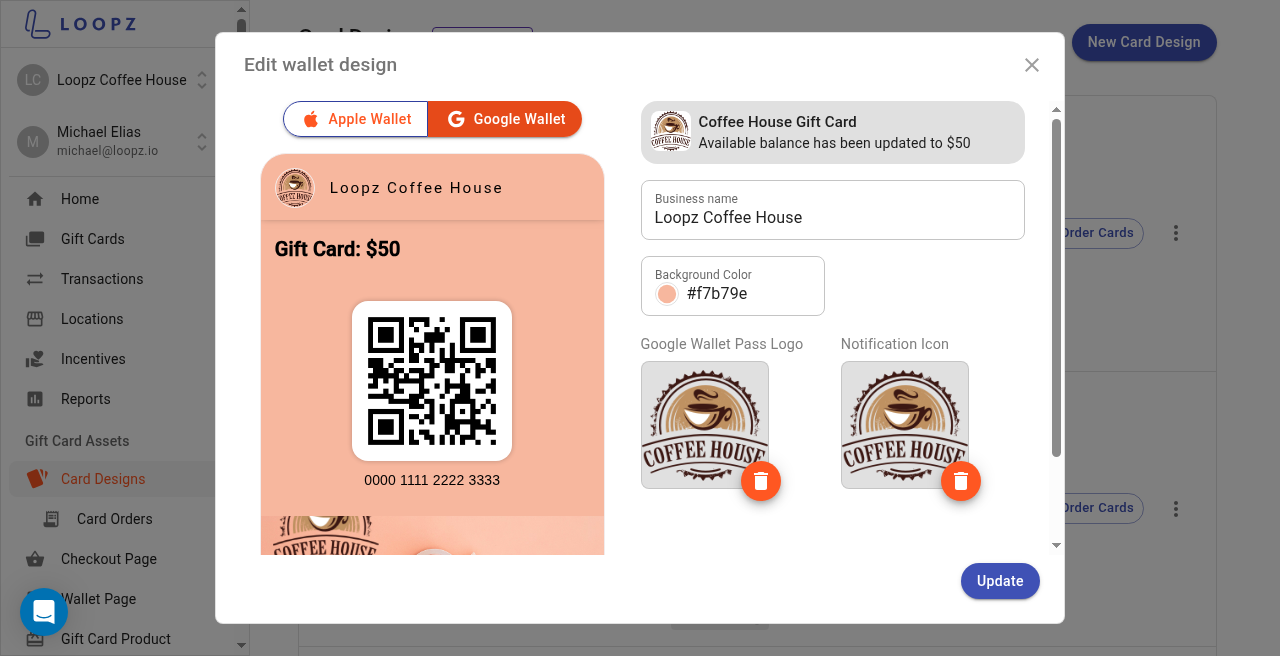
The Edit wallet design dialog shows a live preview of the pass. Use the Apple Wallet and Google Wallet buttons to switch between the two previews.
Some fields are shared across both wallets. Others only apply to Apple Wallet or only to Google Wallet, and appear when that preview is selected.
Shared settings
These settings apply to both Apple Wallet and Google Wallet:
- Business name — the name shown on the pass header. It defaults to your business name.
- Background Color — the main background color of the pass. New card designs start with a color taken from the card artwork.
- Notification Icon — the small square icon shown in wallet notifications (for example when a balance updates). Use a 58px by 58px image.
A notification preview at the top of the editor shows how balance updates will look, using your gift card program name and the notification icon.
Apple Wallet settings
With Apple Wallet selected, you can also customize:
- Title Color — color used for titles on the pass.
- Text Color — color used for secondary text on the pass.
- Apple Wallet Pass Logo — the logo in the pass header. Upload a 320px by 100px image. Narrow logos are trimmed on the right so the business name sits cleanly next to the logo.
The banner image on the Apple Wallet pass comes from your card design artwork (the Apple Wallet strip image generated for that design).
Google Wallet settings
With Google Wallet selected, you can customize:
- Google Wallet Pass Logo — the circular logo on the Google Wallet pass. Upload a 660px by 660px image. Google Wallet displays this logo in a circle.
Title and text colors on Google Wallet are chosen automatically from the background color so the pass stays readable. The large hero image on the Google Wallet pass uses the front of your card design.
To replace a logo or icon, click the trash control on the current image, then use Upload Image. You can drag and drop a file or browse for one, then click Save in the upload dialog.
Save your changes
When the preview looks right, click Update to save the wallet pass design for that card design.
Customers who already have the pass on their phone will see the updated branding the next time their wallet pass refreshes.
Tips
- Create or update the card design artwork first. The Apple Wallet strip and Google Wallet hero image are based on that artwork.
- Use a simple logo with a transparent or solid background for the Apple and Google logos so they stay clear at small sizes.
- Keep the notification icon simple and high-contrast. It appears at a very small size on the lock screen and in notifications.
Ready to sell more gift cards?
One gift card program across your point of sale and online store, always in sync.