Connect your WooCommerce store to your gift card program
The WooCommerce integration enables you to sell and redeem gift cards of your gift card program on your WooCommerce store.
Setup Steps
-
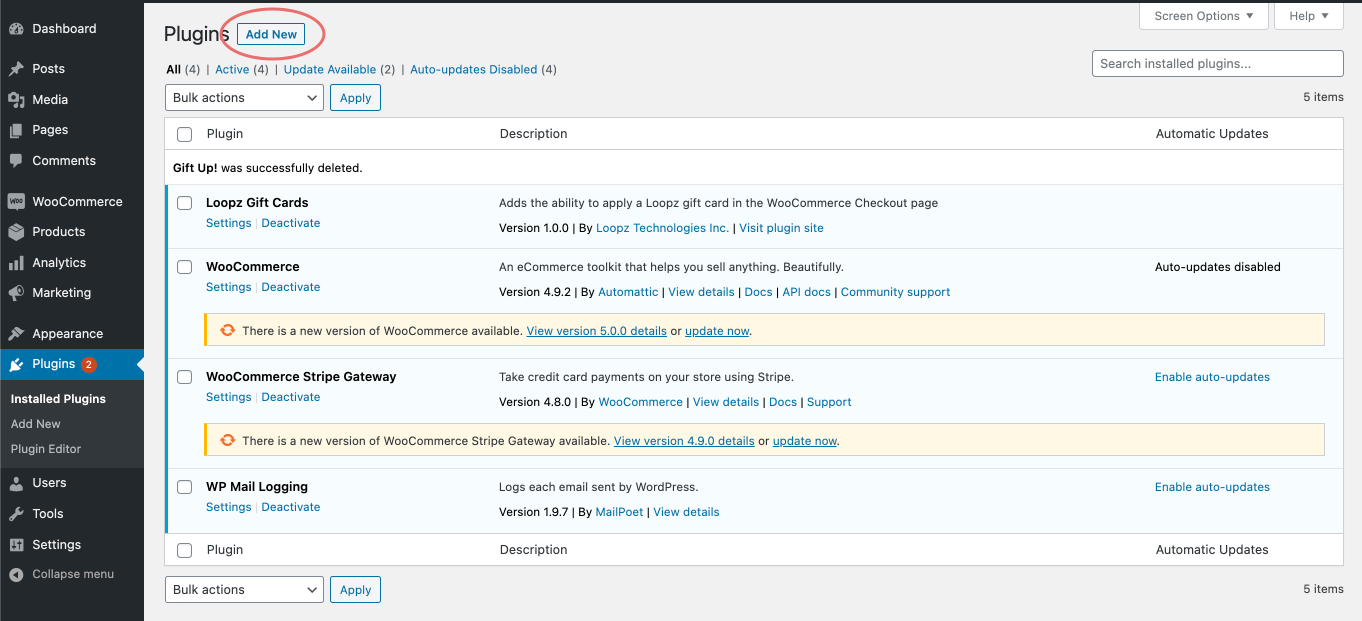
Login to the admin area of your Wordpress site and navigate to the Plugins screen.
-
Click on Add New > Upload Plugin
-
Download our WooCommerce plugin
-
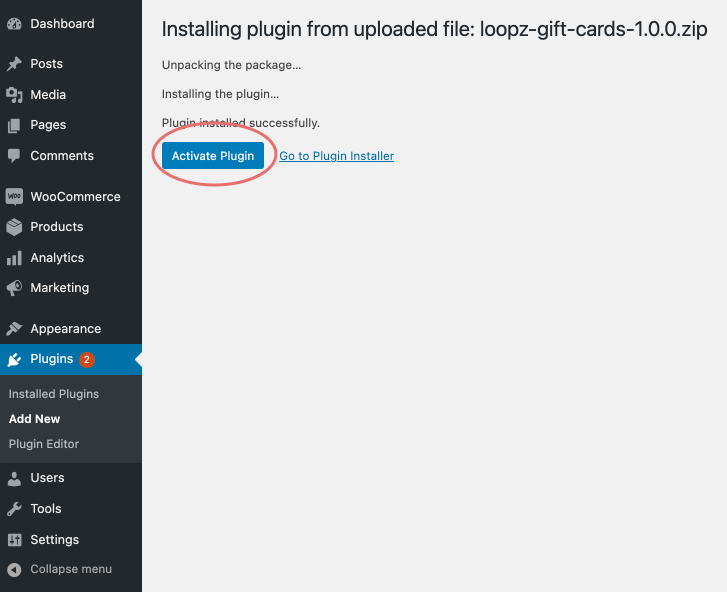
Select the plugin file and click Install Now. Once the installation is complete, click Activate Plugin.
-
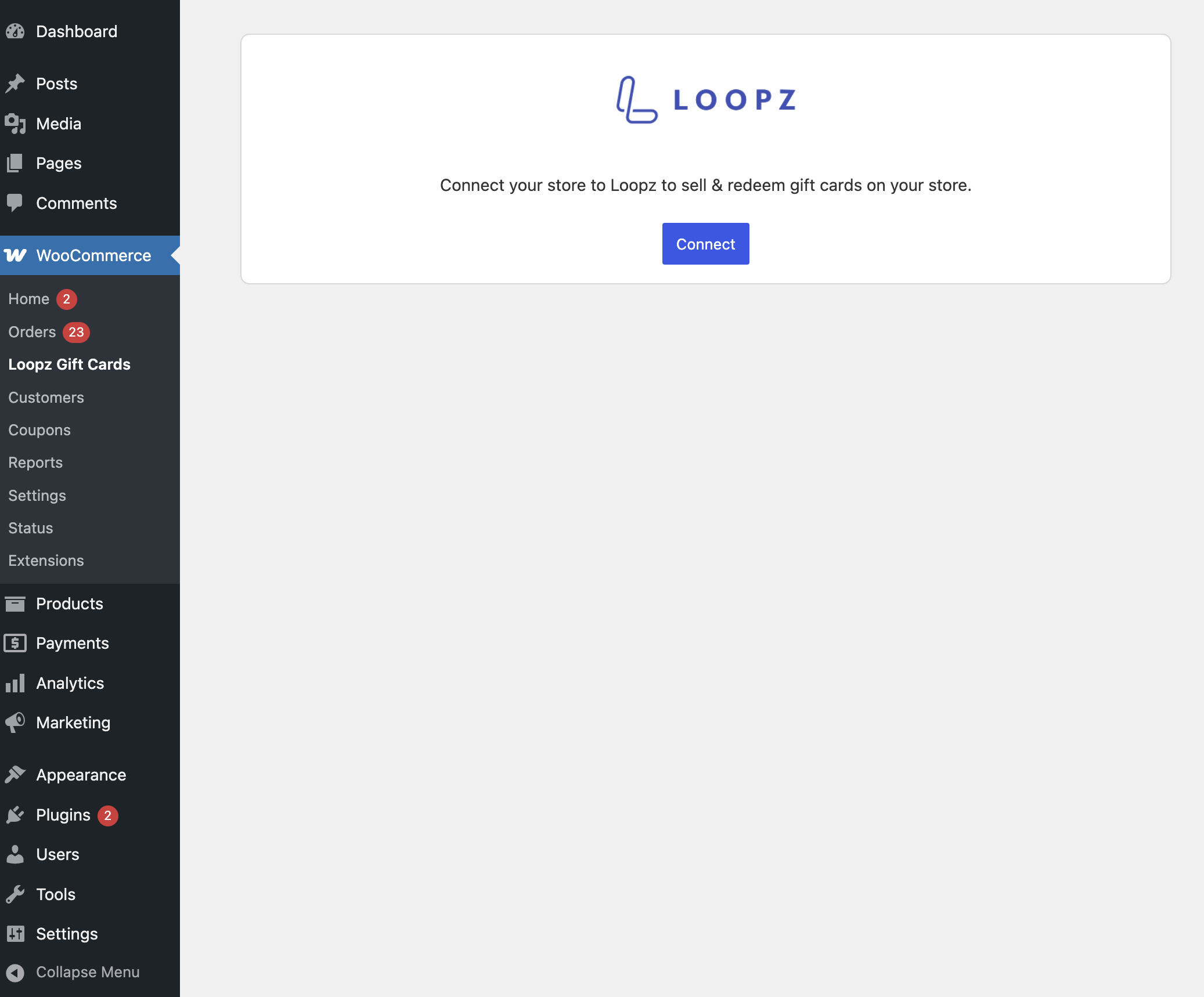
Click on WooCommerce > Loopz Gift Cards in the admin menu
-
Click on "Connect" to start the setup of your Loopz account and gift card program.
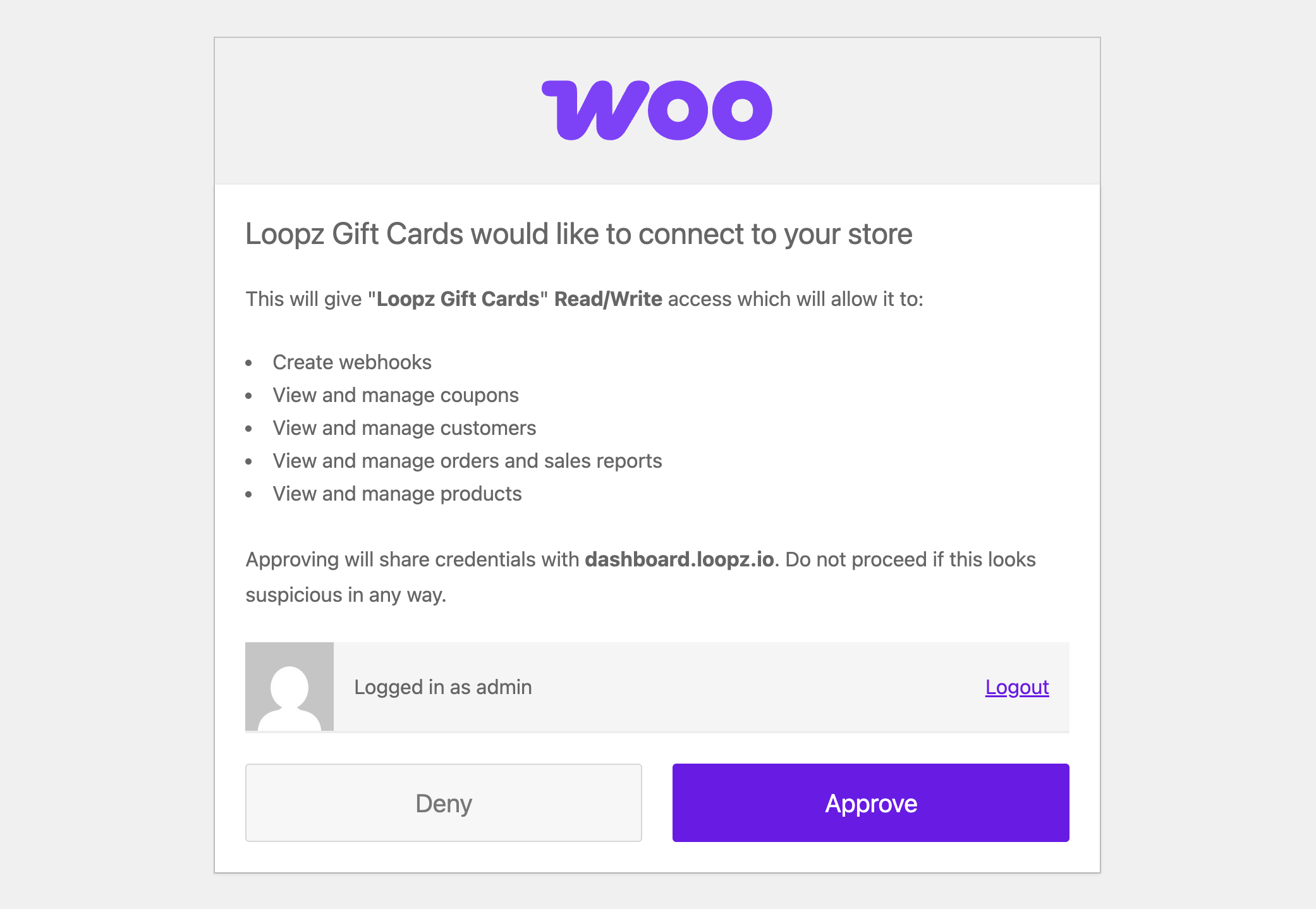
You'll be asked to approve our app's connection to your store. Click "Approve" to continue the setup.
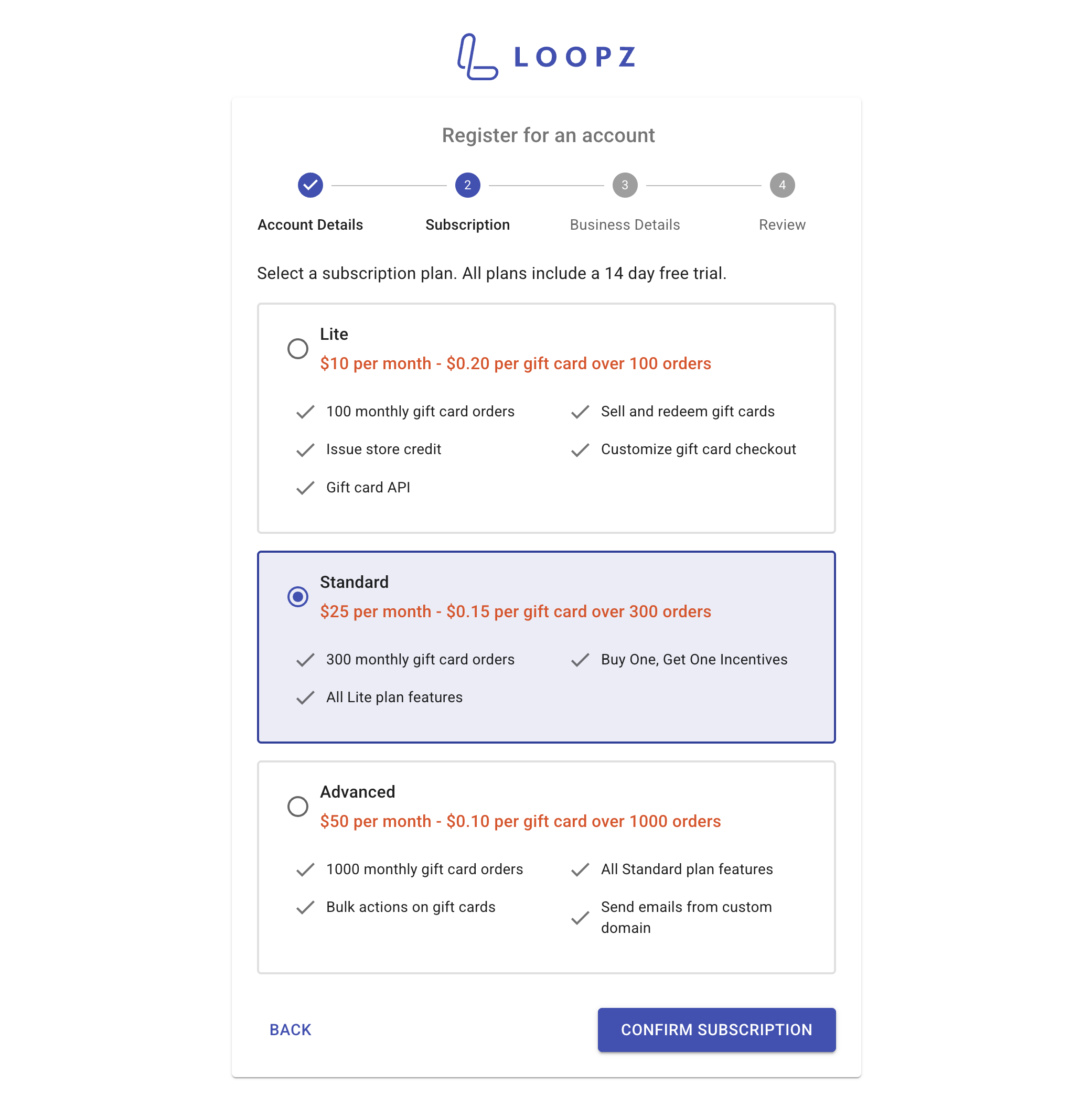
Start your 14 day trial period by selecting a subscription plan and clicking "Confirm Subscription". Once the subscription is confirmed, continue with the setup steps until your gift card program is created.
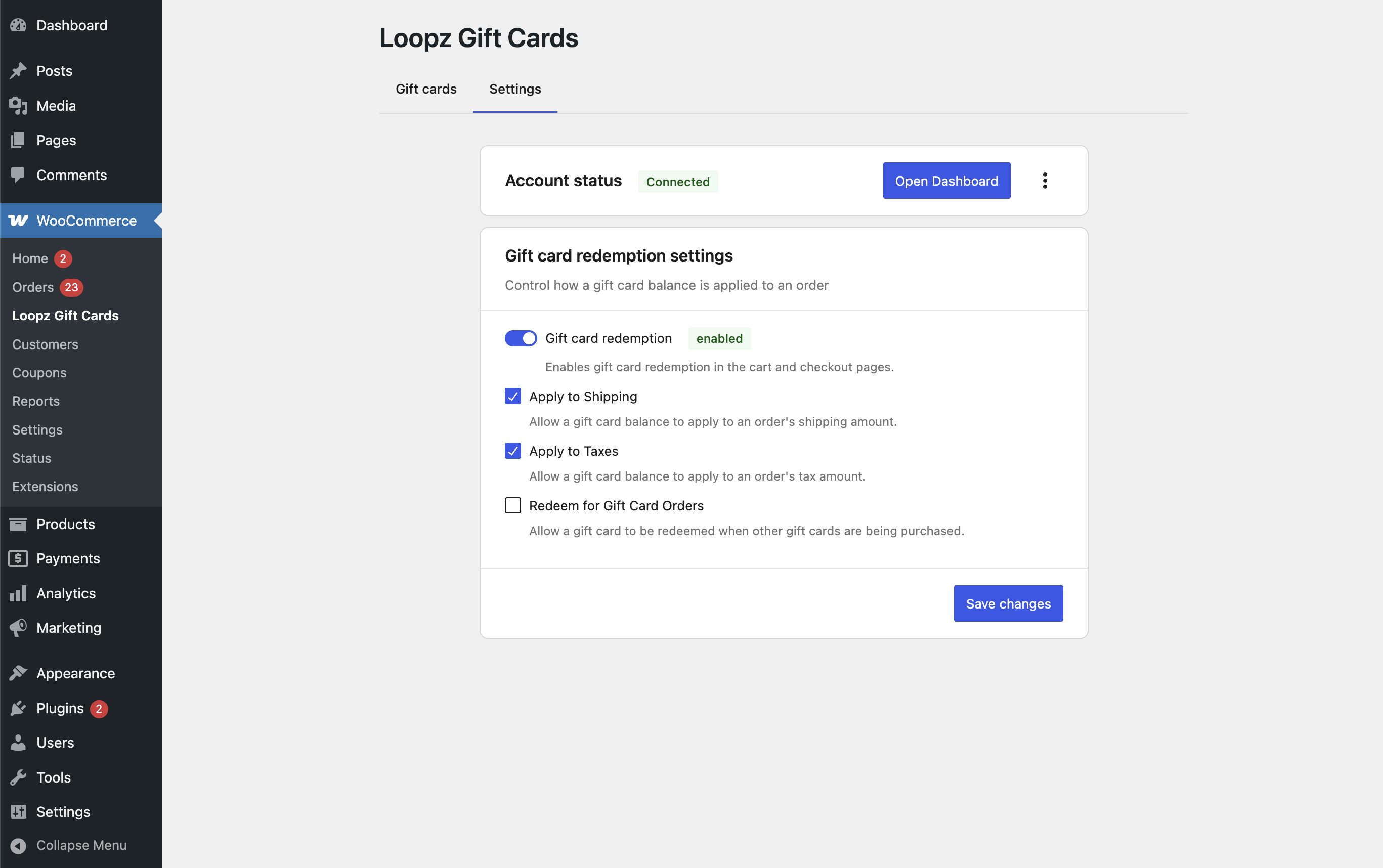
Once your gift card program is created, you're ready to sell and redeem gift cards on your WooCommerce store. Configure how gift cards are redeemed on your store in the settings screen.
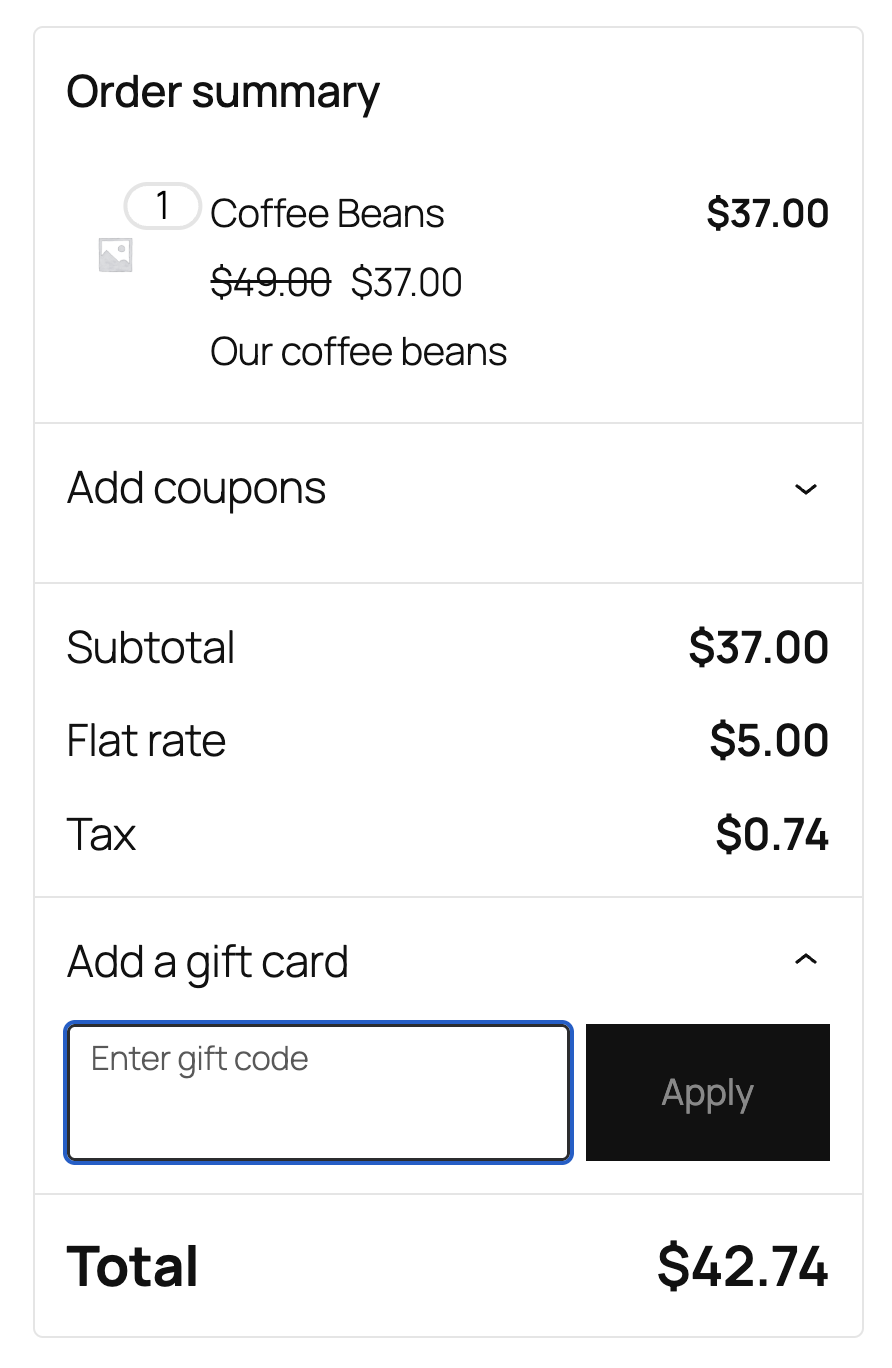
On your cart and checkout pages, a redeem gift card section is now present where customers can enter their gift card for redemption.
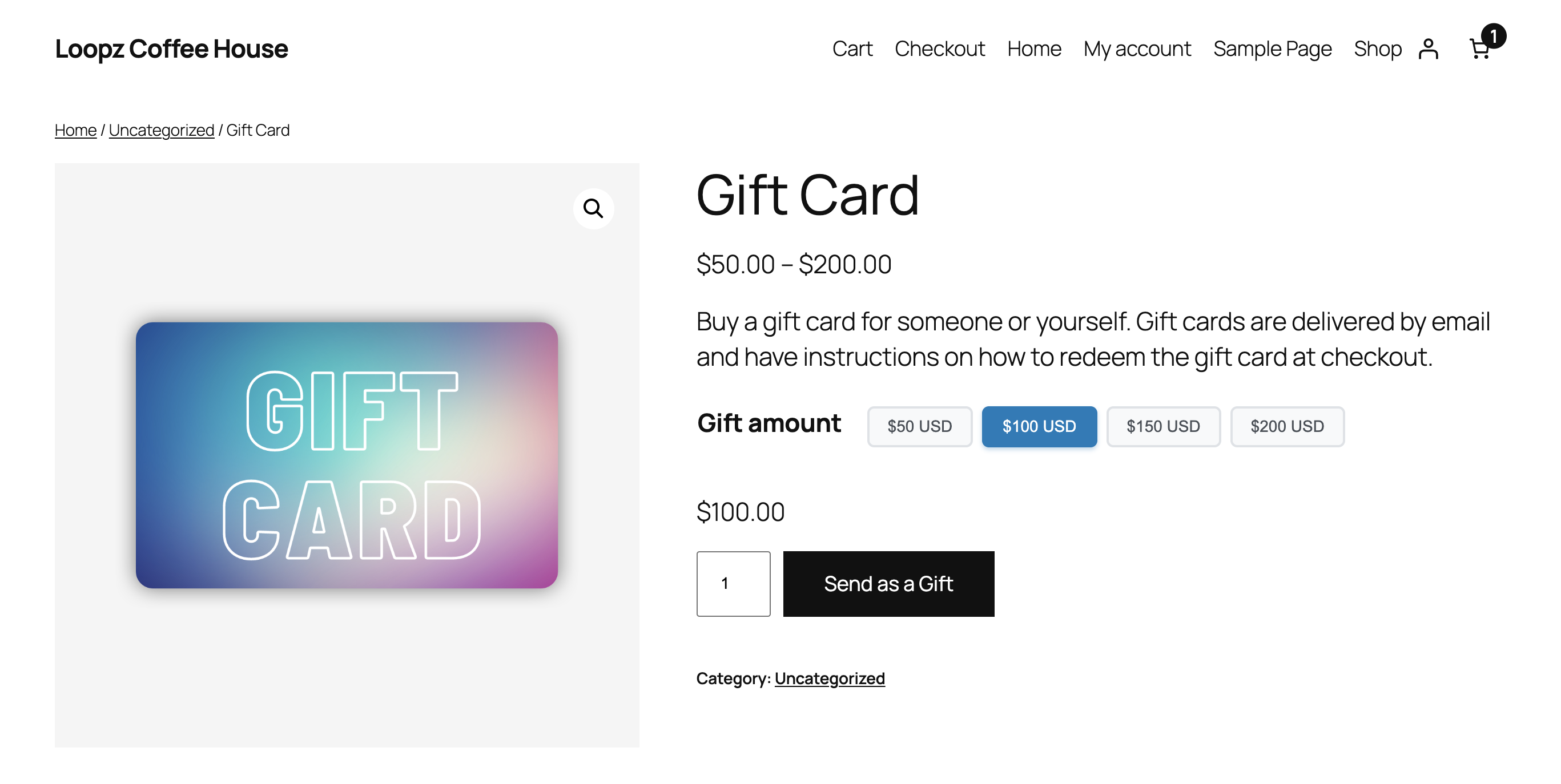
A gift card product has also been created in your store where customers can purchase one or more gift cards. You can manage the details of this gift card product on the dashboard of your gift card program.
Ready to sell more gift cards?
One gift card program across your point of sale and online store, always in sync.