Add a new Clover merchant account to your gift card program
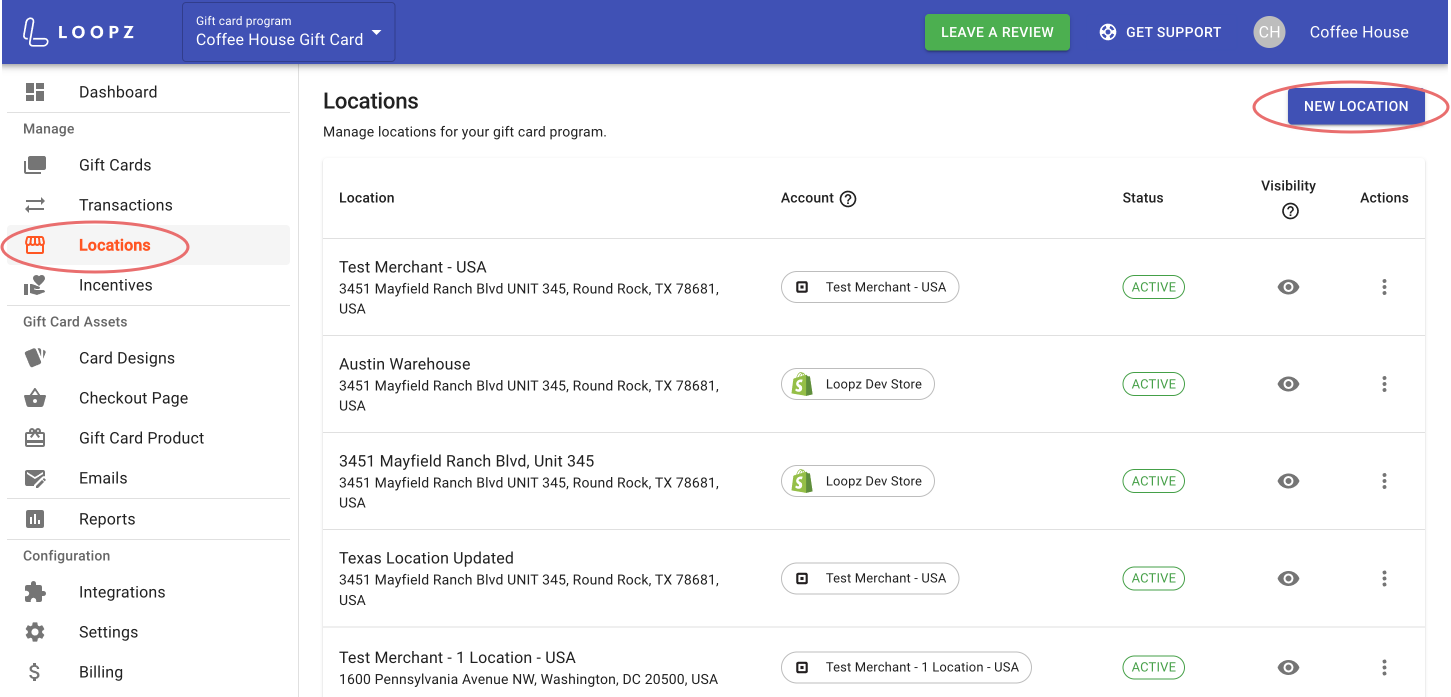
You can connected multiple Clover accounts to your gift card program to allow for gift cards to be sold and redeemed across all your locations. To link a new Clover account to your existing gift card program, go to the Locations screen and click on New Location.
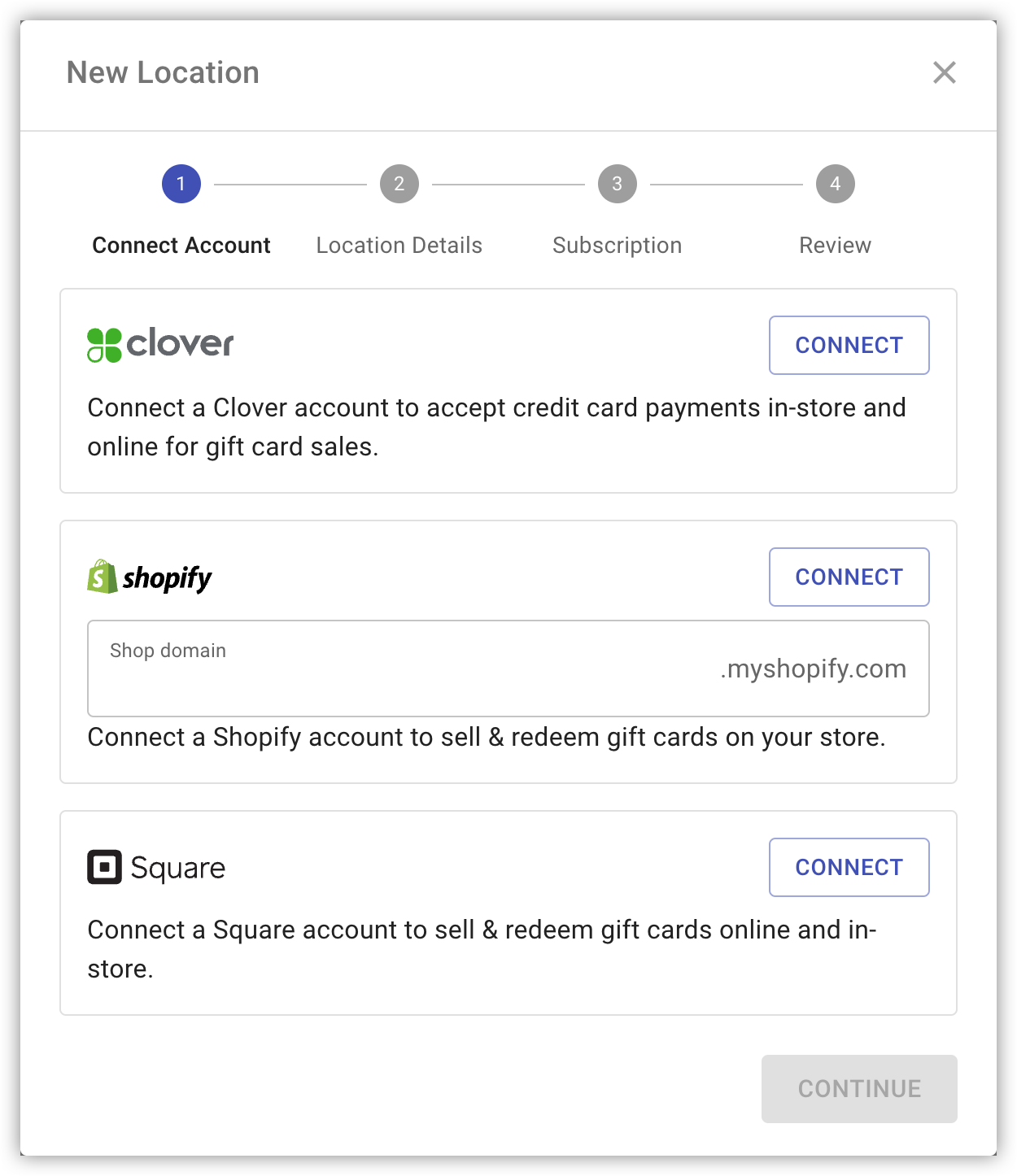
A popup will appear requesting your to connect a new merchant account. Click on the Connect button under the Clover account option.
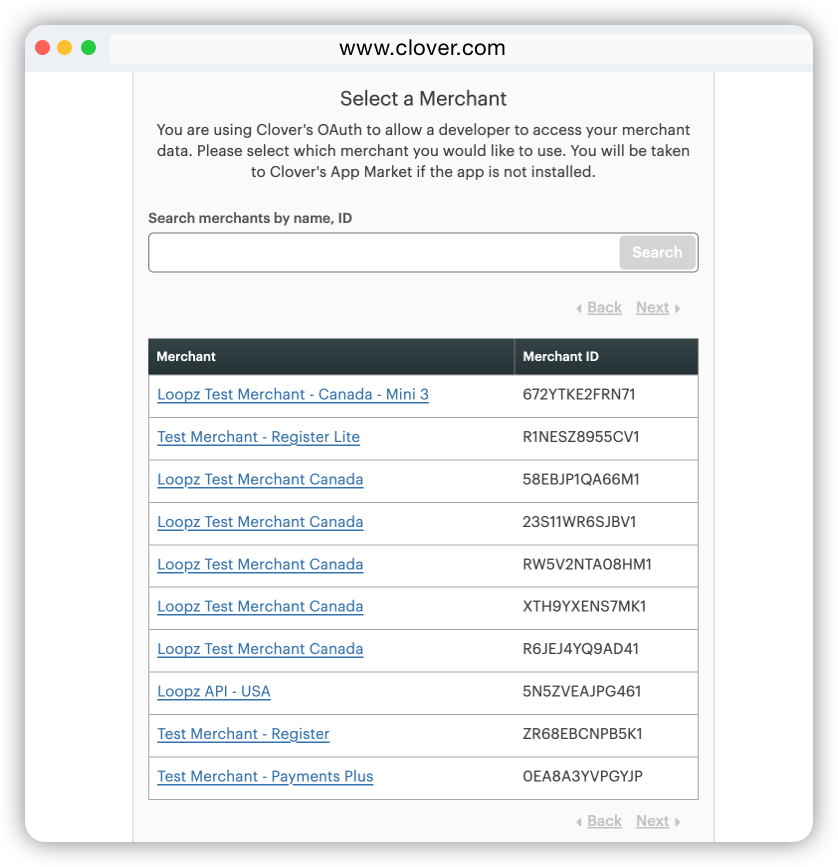
A new popup will appear requesting you to login with your Clover account on Clover.com. Once you've logged in, you will see 2 different options:
-
Select one of your Clover merchant accounts from a list of your Clover account
-
The Loopz Gift Cards app page on Clover's App Market. Connect our app and select a subscription plan. Then click on "Open App".
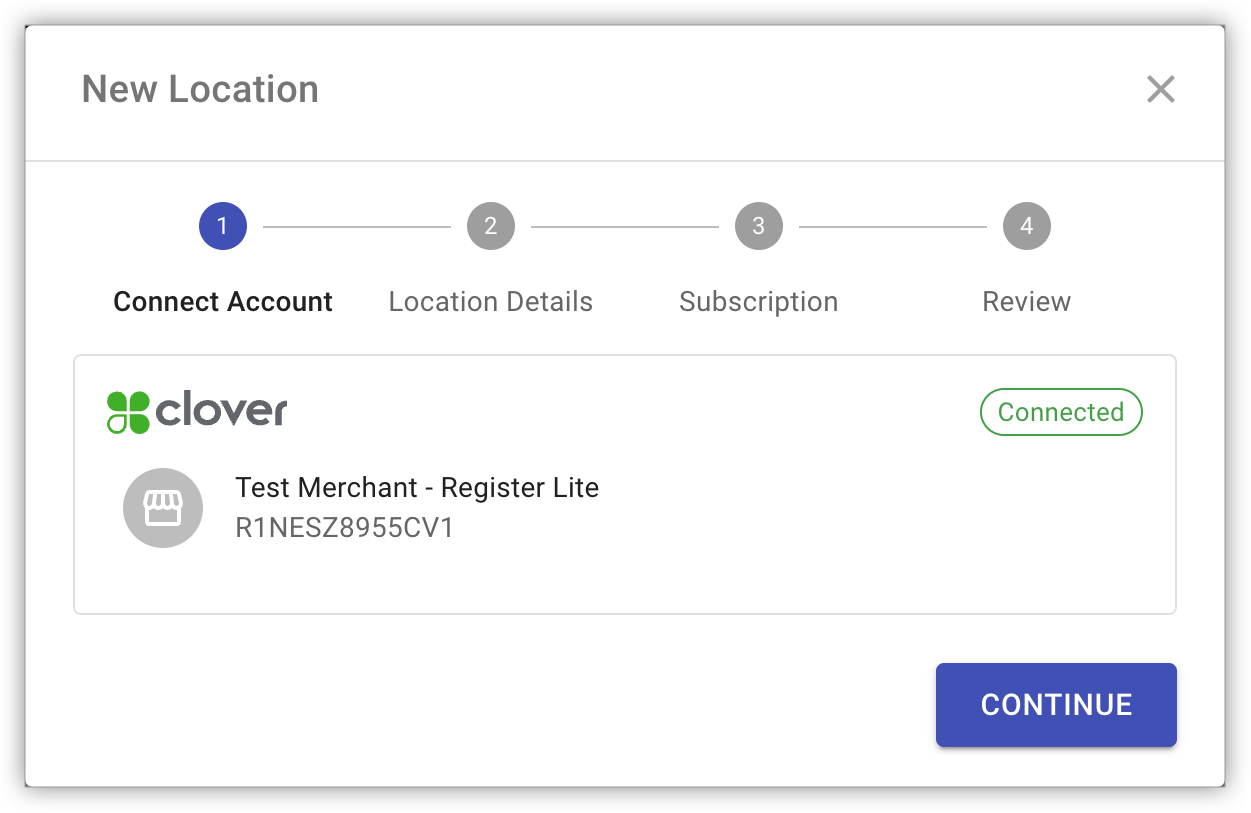
The popup will be closed automatically and you'll see that your Clover account is connected in the New Location popup. Click Continue to go to the next step.
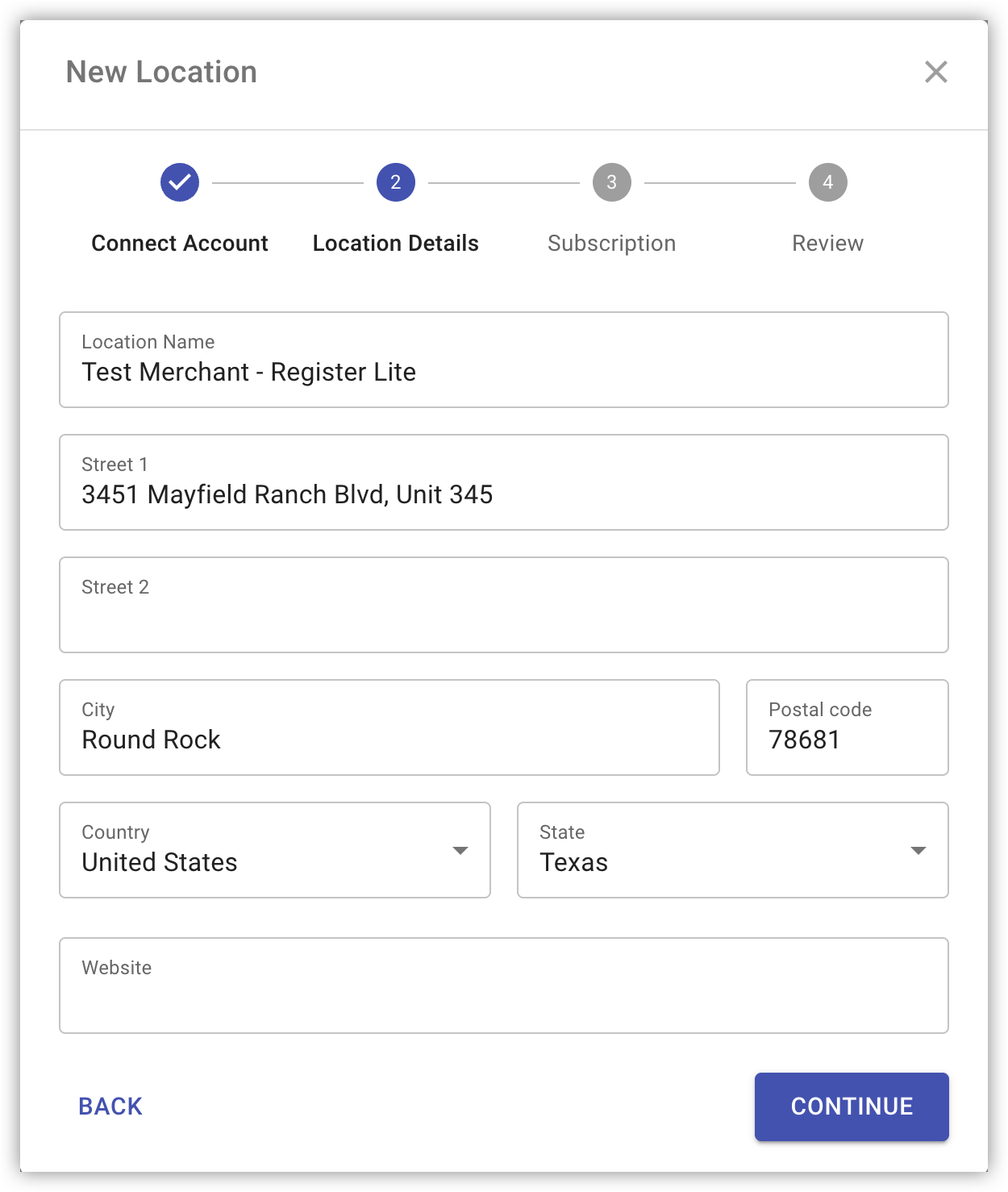
Next you can change the location's name, address and website url. This form will be filled out by default with details obtained from your Clover account. Once you've made your changes, click on Continue to go to the subscription step.
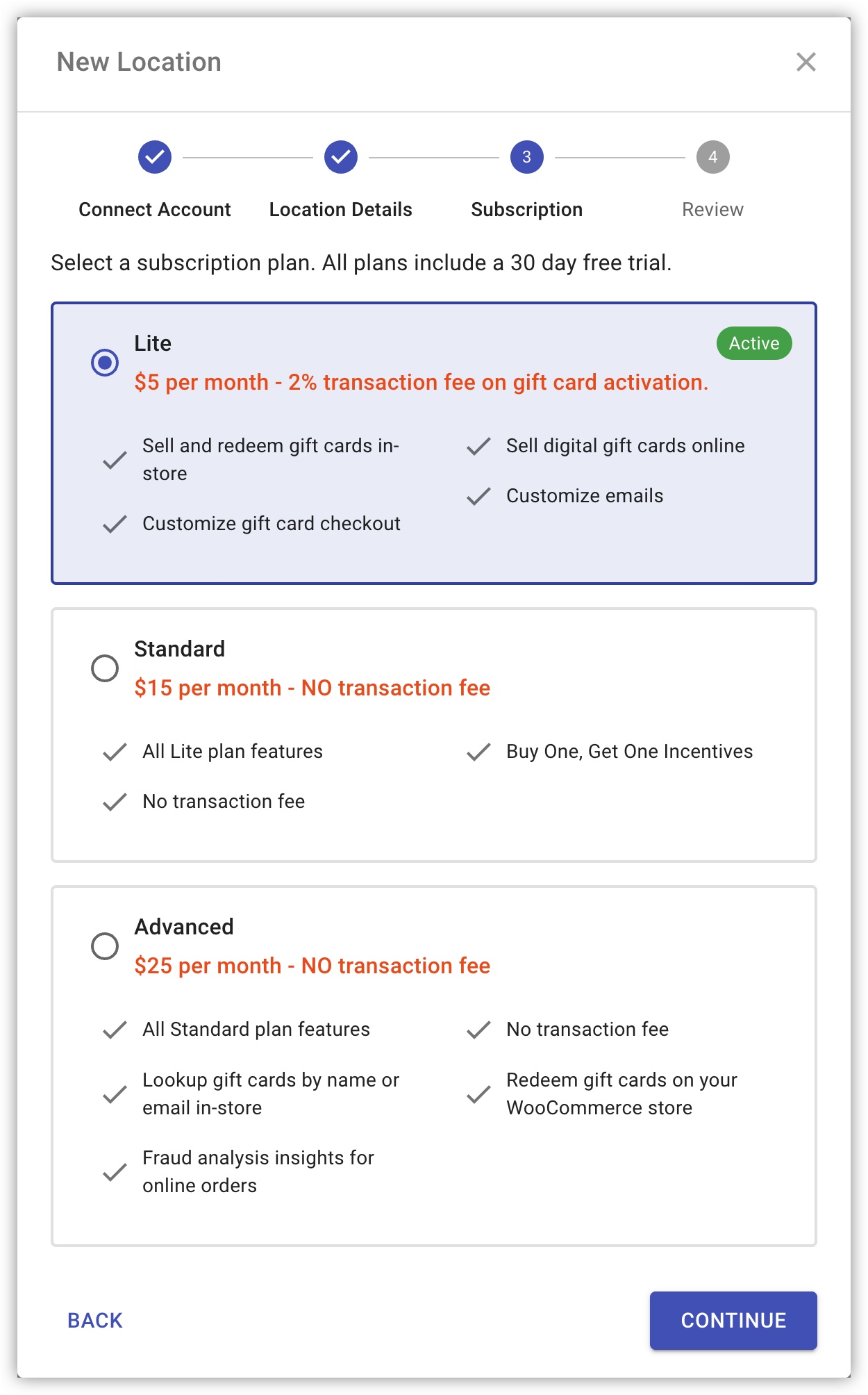
When you connected our app to your Clover account in the Clover App Market, you selected a subscription plan. The selected plan will be highlighted and you can continue to the review step to complete the creation of the new location.
If you want to change your subscription plan, you can select a different plan and click on Update Subscription which will take you to the Clover App Market to make the subscription change.
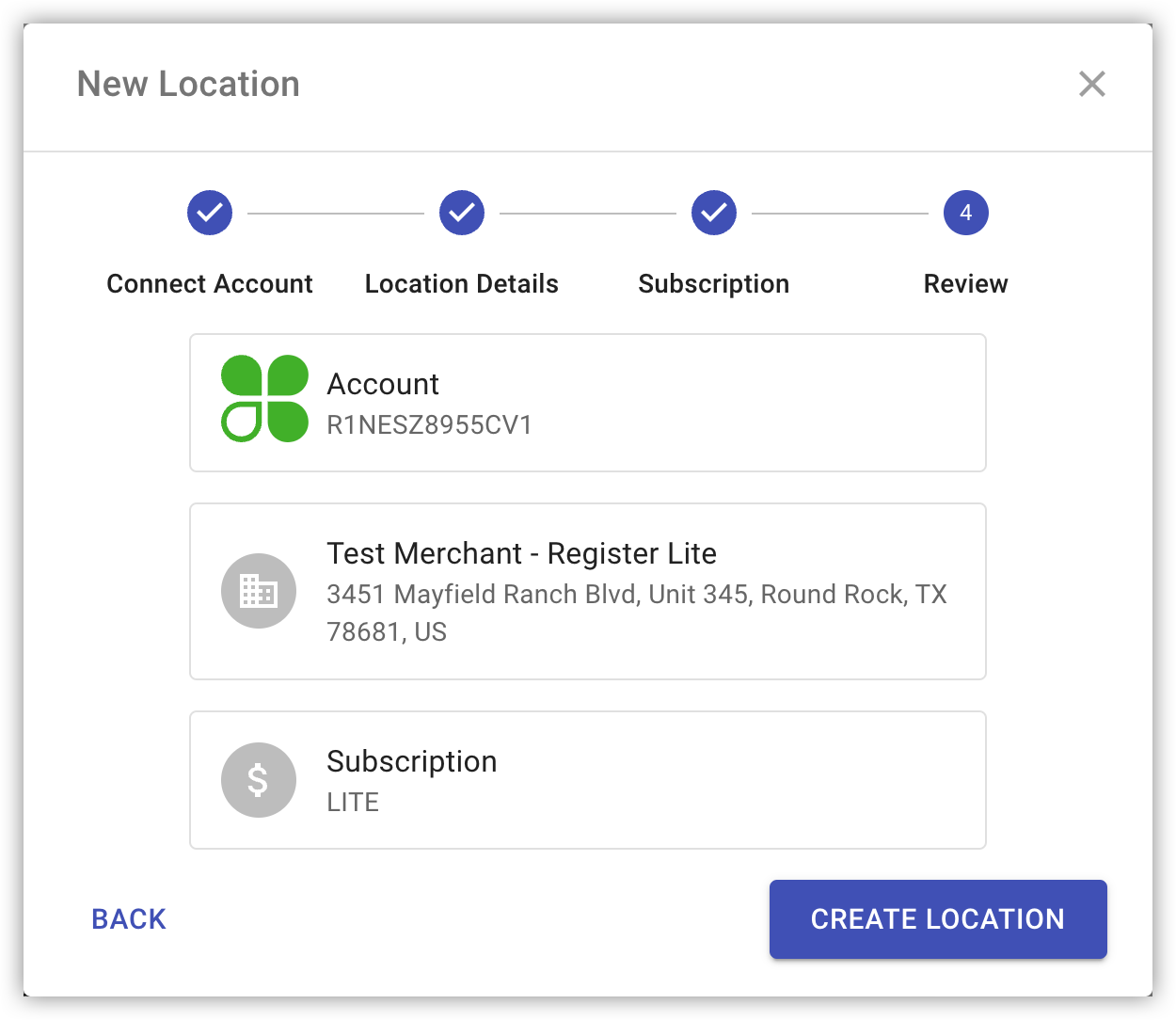
The review step shows your new location's configuration. If you want to make any changes you can click on Back to navigate to the previous steps and make changes.
Once everything looks good, click on Create Location to create your new location.
Ready to sell more gift cards?
One gift card program across your point of sale and online store, always in sync.